
ClickUp vs Teamwork.com: Which Is Better for Agencies?

ClickUp is the better choice for most agencies. Teamwork.com is built specifically for agencies and wins on native profitability reporting, invoicing and project budgets, but most teams outgrow it once they pass 10 team members or 30 clients. ClickUp is the stronger tool for managing all of your work in one place.
At ZenPilot, we’ve worked with thousands of agencies, consultancies, and professional service companies. As ClickUp’s #1 rated Solutions Partner, we’ve helped 3,100+ clients improve their project management, and we’ve implemented both of these tools for agencies.
We’ve used, tested, and compared a lot of project management tools firsthand. For agencies specifically, the two that rise above the rest are ClickUp and Teamwork.com.

ClickUp is known for its flexibility, its feature depth, and its product roadmap. It’s also built for every kind of company, not just agencies.
Teamwork.com is less flexible, but it’s built specifically for agencies. That gives it a leg up in a few features, especially agency financial reporting.
So should every agency just sign up for the tool built for agencies? Not exactly. The TL;DR: most teams outgrow Teamwork.com once they pass about 10 people or 30 clients. The rest of this post covers who should stay on Teamwork, and who should use it over ClickUp.
Key Takeaways
ClickUp wins for most teams
Better work management, cross-client visibility, custom views and templates, and it scales from solopreneurs to 100+ person organizations. Most teams outgrow Teamwork.com.
Teamwork.com wins on native financial reporting
Profitability tracking, invoicing, and project budgets are built in, but full profitability reporting now requires Teamwork’s Optimize plan, which is quote-only. Teamwork’s published plans are Basics ($9.99/user/month) and Accelerate ($24.99/user/month), billed yearly.
Team size matters
Teamwork.com fits best for small teams (under 10 members, under 30 clients). Larger teams lose visibility across clients and struggle with cross-functional collaboration.
ClickUp + ZenPilot Profitability Reports has a published price
For a 20-person team, ClickUp Business + ZenPilot reports costs roughly $11,380/year. Teamwork’s profitability features sit on Optimize, so you’ll need a quote from Teamwork to compare.
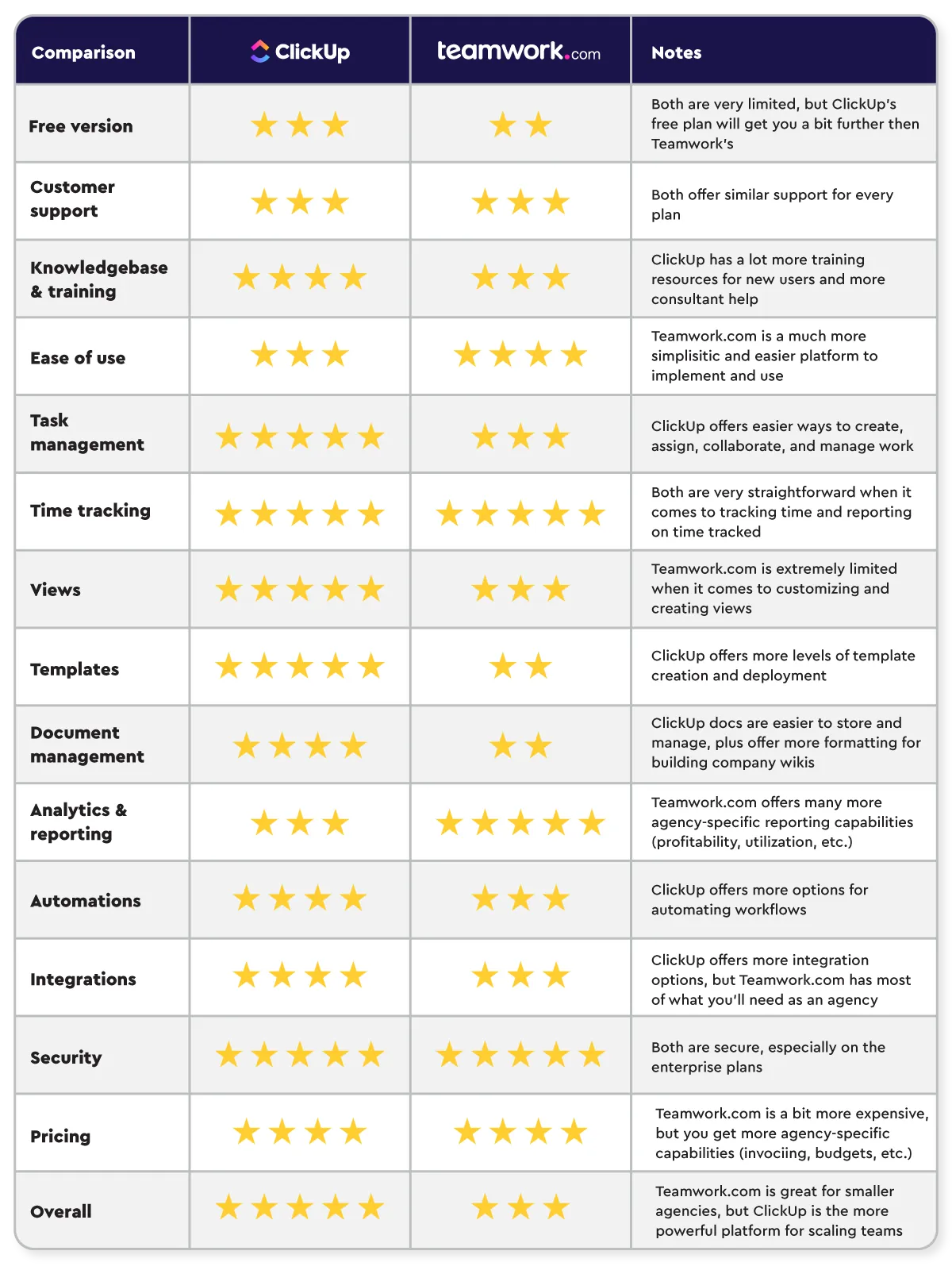
ClickUp vs Teamwork.com: Feature Comparison Table
Here’s how ClickUp and Teamwork.com compare on the features that matter most for agencies:
| Category | ClickUp | Teamwork.com | Winner |
|---|---|---|---|
| Hierarchy / Organization | Workspace > Spaces > Folders > Lists > Tasks > Subtasks. Extremely flexible - build any structure you want. Hierarchy pairs with views for cross-client visibility. | Simpler, agency-focused hierarchy. Paint-by-numbers setup that’s easier to implement, but harder to see work across multiple clients in one view. | ClickUp |
| Task Management | Robust subtasks, bulk action toolbar for editing many tasks at once, easy date remapping in Gantt (including skip weekends), and AI-powered standups. | Subtasks function more like checklists - changes to parent tasks cascade to all subtasks. Hard dependencies prevent completing blocked tasks. Cross-functional workflows are more limited. | ClickUp |
| Views & Reporting | Views at every hierarchy level. Zoom from a single project to all client work in one click. Highly customizable dashboards with many widget types. Custom fields enable deep filtering. | Limited view customization - each project gets standard list, board, Gantt, and table views. Filters and saved views are more basic. Leadership reporting (utilization, client health) is strong on higher plans. | ClickUp (work management) / Teamwork (financial reporting) |
| Time Tracking & Billing | Built-in time tracking on all plans. Billable/non-billable tagging. Dashboard reporting on time tracked vs. estimated. No native invoicing or cost/billable rate tracking. | Built-in time tracking with billable rates, cost rates, project budgets, and invoicing directly in the platform. Profitability reporting and timesheet approvals available on the Optimize plan (quote-only). | Teamwork |
| Client Management | Guest users with folder/list-level permissions. Public views for client portals. Cannot hide internal comments from clients. | Free unlimited client users and collaborators. Private comments let you hide internal communication from clients. Simpler permission structure. | Teamwork |
| Templates & Processes | Template anything - spaces, folders, lists, docs, views, tasks. Remap due dates on deployment. Unlimited templates. Best-in-class template system. | Two types of templates only. Logical date mapping (day 1, day 2, day 3). “Assign later” with role-based auto-assignment is a standout feature. Template count is capped. | ClickUp |
| Pricing | Paid plans start at $9/user/month. Free plan available. ClickUp Business + ZenPilot Profitability Reports runs about $11,380/year for 20 people. | Basics $9.99/user/month, Accelerate $24.99/user/month (billed yearly). Optimize (quote-only) required for profitability reporting. Free plan for up to 5 users. | ClickUp (unless you need native profitability reporting) |
| Best For | Agencies of any size that want a fully customizable single source of truth for all work management, SOPs, templates, and cross-client visibility. Steeper learning curve but scales with you. | Small agencies (under 10 team members, under 30 clients) that need native profitability reporting, invoicing, and budget tracking in one tool. Easier to set up but most teams outgrow it. | Depends on priorities |
- You have 10+ team members, 30+ clients, or two or more people working on each client.
- You want one source of truth for work management, SOPs, templates and cross-client visibility.
- You bring freelancers into your system to track time, close tasks and communicate.
- You want financial reporting at a published price through ZenPilot Profitability Reports.
- You’re a small agency with under 10 team members and under 30 clients.
- Native profitability reporting, invoicing and budget tracking are a must-have.
- Your team is less tech-friendly and wants an easier platform to implement and use.
- You want free unlimited client users and private comments hidden from clients.
What Is ClickUp?
ClickUp is an all-in-one work management platform that combines project management, docs, time tracking, dashboards, and goals in a single Workspace. Its hierarchy (Workspace > Spaces > Folders > Lists > Tasks) lets agencies organize client work, internal operations, and growth initiatives in one place, with views at every level for cross-client visibility.
What Is Teamwork.com?
Teamwork.com is a project management platform built specifically for agencies and client services businesses. It includes native profitability reporting, project budgets, invoicing, and timesheet approvals, which most PM tools don’t offer. Teamwork trades deep customization for a simpler, more structured setup designed around how agencies deliver client work.
Teamwork vs ClickUp: Which Will Serve My Agency Better?
Whichever tool you pick, you only get the productivity and visibility gains if it’s set up properly. We’ve written a step-by-step guide to our process for each one:
Download the Complete ClickUp for Agencies Guide
The 47-page guide includes graphics, checklists, and links to how-to videos so you can put your ClickUp plan into action.
Get Instant Access →For a second opinion, here’s an interview with Brooke Waddy on her experience using both platforms:
And here’s the short version:
Which Agencies Should Use Teamwork.com?
Teamwork.com is best for small agencies with fewer than 10 team members and 30 clients, or consultative agencies where only one person completes the work for each client.
Once you move beyond 10 team members, 30 clients, or two or more team members working on each client, you lose a lot of the visibility you need to serve your clients well.
If you collaborate closely with many freelancers, Teamwork will also be a difficult tool to use.
There’s a lot to love in Teamwork, but you will outgrow the platform eventually.
The one other case where Teamwork makes sense for a team of more than 10 is when native profitability reporting is make-or-break for your agency.
Teamwork offers the best profitability reporting, budgeting, and invoicing capabilities in the project management system market. You can set cost rates and billable rates for each user, set budgets for projects, and track external costs and expenses on the platform. It does come with a price tag, which I’ll get to below.
Most project management systems don’t offer profitability reporting or invoicing. Teamwork does because it’s focused exclusively on agencies.

Which Agencies Should Use ClickUp?
ClickUp works for agencies of any size. Whether you’re a solopreneur just getting started or a 100+ person agency, it will scale with you.
ClickUp is a MUCH better system for work management. If you want to systematize the business so you can delegate, manage projects across a variety of people and teams, or help your team collaborate better, ClickUp is a strong tool.
The big limitation versus Teamwork: ClickUp can’t natively report on profitability, invoice clients, or track budgets.
ClickUp is customizable enough that there are integrations and workarounds for this. We’ve built our own solution for financial reporting that uses ClickUp data. It isn’t native inside ClickUp, but it can be more cost-effective than Teamwork’s financial reporting (math below).
Teamwork.com Pros and Cons vs ClickUp
Teamwork.com Pros
The Best Native Reporting and Profitability Tracking
If you need to see how profitable specific clients and projects are, Teamwork.com has you covered. On the Optimize plan, you can upload user costs and billable rates, project budgets and expenses, and then report on your financials directly in the platform.
The reporting is fantastic and very easy to use because it’s all on one platform, but it’s a significant financial lift. The profitability reporting capabilities sit on the Optimize plan, which Teamwork only quotes, above Accelerate at $24.99/user/month. That’s pricier than most project management tools.

Native Invoicing and Project Budgets
Teamwork.com also lets you set project budgets, track external expenses, and create invoices directly in the platform.
When you set up a project, you can base its budget on a fixed fee, time & materials, or a monthly retainer. You can also choose when the budget repeats, whether it’s based on time or money, and whether unused retainer hours carry over to the next period.

Invoices can be based on a fixed price or on time & expenses. You can also integrate Teamwork.com with QuickBooks or Xero to generate invoice numbers and export your invoices to those platforms.

Private Comments You Can Hide from Clients
If you bring clients into your Teamwork.com site to collaborate and take on assignments, you can privatize comments that your clients shouldn’t see.
This is a significant feature gap in ClickUp at the moment. There are workarounds, but Teamwork.com makes it easier to bring clients into your workflows without showing them your internal communication.

A Simpler Hierarchy Built for Client Work
Teamwork.com’s hierarchy is built specifically for agencies, which makes it easier to use and understand.
Most project management systems are blank canvases (especially ClickUp). Teamwork.com is more of a paint-by-numbers. The framework is already in place for you to follow, so it’s much easier to set up and implement.
Free Client Users and Collaborators
Inviting clients is free. Regardless of your plan, you get unlimited client users and collaborators. This pairs well with private comments.
Logical Template Date Mapping
Teamwork.com templates are very easy to build, save, and use. When you build a template, each task gets a relative “due date”: day one, day two, day three, etc.
When you deploy the template, those are all remapped to your due date of choice. It’s nothing groundbreaking, but in most systems you pick “dummy dates” and remap from there, which can confuse new users.
Delivery Roles and Auto-Assigning in Templates
Teamwork.com also makes it very easy to assign work when you deploy a template.
Assign a role (e.g., copywriter, proofer, designer) to each task in your template. When you deploy it, you’re prompted to pick the person who fills each role, and they’re automatically assigned to the right tasks.

Hard Dependencies
This one is a pro or a con depending on the team. Teamwork.com uses hard dependencies: if you build dependencies into your workflows, users can’t complete tasks that are still blocked.
That keeps projects in the right order and pushes some users to get their work done on time! In ClickUp, dependencies are soft. Users get a warning, but they can still complete the “blocked” task.
Teamwork.com Cons
Limited Visibility for Account and Project Managers
The biggest fault with Teamwork.com is the lack of visibility at the account management level. This is exactly why most teams outgrow the platform.
You can see a report of how many tasks are left in a project, view client health, and check in on project budgets. But there’s no easy way for an account manager to build a single view showing the progress of every open and completed deliverable and task across their clients.
Subtasks Make Cross-Functional Work Harder
Subtasks are a great way to build workflows where your team passes work back and forth. In Teamwork.com, though, subtasks operate more like checklists. If you have 30 subtasks under a parent task and adjust something in the parent, all of those subtasks update to match.
That makes subtasks basically unusable for assigning to different people. An ideal agency workflow makes the parent task the deliverable (e.g., blog post) and the subtasks the steps to complete it (write the blog post, proofread the blog post, etc.), with the whole team communicating in the parent task. That workflow is difficult in Teamwork.com.
Limited Custom Views
Teamwork.com’s greatest strength is also its greatest weakness here. You have very little ability to create custom views for specific users.
Each project has a standard set of views: list, board, Gantt, table, and a pre-built dashboard. Beyond that, there isn’t much you can customize. Filters and saved filtered views are also limited compared to most project management systems.
Teamwork Pricing Gets High for Profitability Reporting
Teamwork.com gets expensive if you need full profitability reporting. Those features (revenue, cost, and profitability insights, financial budgets, profitability forecasting) are on the Optimize plan, and Teamwork doesn’t publish a price for it. It sits above Accelerate, which is already $24.99 per user per month billed yearly.
We’ve built our own profitability reporting for agencies using ClickUp, and it works on every ClickUp plan. The upside: it has a published price, so you know what you’re paying before you talk to anyone.

Here’s the math for a 20-person team:
ClickUp Business plus our Profitability Reports comes to $11,380/year.
$17 x 20 users x 12 months = $4,080 (cost of ClickUp’s Business Plan per year)
$2,500 setup fee + ($400 x 12 months) = $7,300 (cost of ZenPilot Profitability Reports per year)
$7,300 + $4,080 = $11,380 (total cost of ZenPilot Profitability Reports + ClickUp per year)
For comparison, Teamwork’s Accelerate plan alone (no profitability reporting) is $24.99 x 20 x 12 = $5,998/year. For Optimize, you’ll need a quote from Teamwork. (Teamwork pricing checked November 2026.)
Take the Guesswork Out of Agency Profitability
Stop making decisions with guesstimates. Get a glimpse into your agency’s profitability and utilization.
Learn How →No Sprint Support
Teamwork.com does not support Agile methodology. If your agency runs in sprints, you won’t be able to plan work in sprints or report on them.
Most agencies follow a waterfall approach, so this won’t matter to most. You’ll probably find some articles on running sprints in Teamwork.com (similar to this one), but that’s really just moving tasks in a Kanban view.
Contractors Need a Paid Seat to Do Real Work
If you work with a lot of contractors and want them heavily involved in your workflow, that’s hard in Teamwork.com unless you pay for their seats.
Teamwork.com only has three levels of users: Standard User, Client User, and Collaborator. Collaborators don’t cost you anything, but they can’t track time or even close tasks. They can really only view information. This is much easier in ClickUp.
ClickUp Pros
The Hierarchy and Views Work Together
ClickUp’s Hierarchy plays perfectly with its views. You can view the progress of a specific project, then zoom out to see the progress of 10 different projects in one place.
You can view that data in a board, list, Gantt, timeline, dashboard, etc. You can also zoom out further and see only the work assigned to you, your team, or a specific account manager. For visibility, ClickUp stands out among all project management platforms.

Customization and Flexibility
You can build basically anything you want in ClickUp. Their marketing line is “one app to replace them all,” and it’s very true. We’ve used ClickUp for a CRM, ATS, OOO management, running EOS and meetings, and our company wiki.
Templates for Almost Anything
You can build a template for basically anything in ClickUp: a small deliverable (blog post), a project (website build), a client Folder, a meeting agenda, a view you like, or an email. That’s what lets you systematize your business on the platform.
Related: How to 10x Productivity With ClickUp Templates
Built-in Docs, Wikis, and Whiteboards
ClickUp Docs are very capable (not as good as Notion), and they make it easy to store meeting notes and client documents in one place.
You can also build all of your SOPs directly in ClickUp, or collaborate in Docs when writing blogs, website pages, ebooks, etc.
25+ Types of Custom Fields
Custom fields are a big part of why you can build so many different solutions in ClickUp. There are 25+ types.
They can store data, power filtered views and dashboards, or trigger automations.
Related: How to Use Custom Fields in ClickUp
AI Included on Every Plan
ClickUp’s AI is included in every ClickUp plan as of October 2026, with a monthly pool of AI credits, and it pays off when your team actually uses it. It can write daily standups, write copy, and fix spelling errors and mistakes. ClickUp keeps improving it, with Super Agents, Brain MAX, and multi-model support now available. You can analyze ClickUp data and connect other apps (like Google Docs) too!

New Features Ship Weekly
ClickUp has a very promising product roadmap. And unlike a lot of other SaaS companies, they actually deliver - on a weekly basis! It’s not always what you want them to build and it’s not always agency-specific, but they’re always improving the system.
The Bulk Action Toolbar
This may not sound like a big pro, but if you have any project management or admin duties, the bulk action toolbar in ClickUp is heavenly. Select as many tasks as you want and change the assignee, edit a custom field, edit a due date, change the status, copy the task names, move the tasks, etc. Our team uses it every day. I’m not sure why other systems haven’t built it yet.

Easy to Bring Contractors into Your Workflow
ClickUp lets you invite guests into specific locations within your Workspace. They can track time, close tasks, and communicate with your team. You get a limited number of free guest seats (typically 5 per paid user), but this isn’t usually an issue for teams.
ClickUp Cons
Hard for New Users to Learn
You can set up ClickUp in a million ways and build thousands of views, which is daunting for new users. The customization is a strength for people who can use it, but it can frustrate and burn out a team. New users will need heavy training.
Limited Financial Reporting
There’s a lot you can report on in ClickUp once it’s set up, but financial reporting is very limited. Unlike Teamwork.com, you can’t set up cost rates, billable rates, or project budgets to determine profitability or project pacing.
Most agencies export ClickUp data into some pretty advanced Excel sheets or use our Profitability Reports to see how profitable their clients and projects are.
No Private Comments for Client Communication
In ClickUp, it’s hard to bring clients into your Workspace without showing them “how the sausage is made”. If you bring them into your workflow and assign them tasks, you can’t hide internal comments from them. It’s a current feature request, but it’s not built yet. There are workarounds, but they’re not ideal.
If you want this feature, go upvote “ClickUp vs. Private Comments” in canny!
No Native Client Invoicing
A lot of agencies want a more automated way to invoice clients. ClickUp isn’t strong here either. You can track time easily and see where it was tracked, but you can’t invoice directly or easily from ClickUp.
Exporting time data from ClickUp is a pain as well. If you invoice clients based on tracked time, it won’t be a simple process.
It Can Be Buggy and Slow…Sometimes
This is the biggest complaint in the ClickUp community: annoying bugs and slow loading times. Their 3.0 upgrade has made the system much faster and less buggy, and they’re headed in the right direction.
ClickUp or Teamwork.com: Which Is Better for Your Agency?
In my opinion, ClickUp wins the head-to-head for most agencies, especially once you pass about 10 people or 30 clients.
Teamwork.com is a fantastic system for agencies that need reporting, invoicing, and client management in one place. For overall work management, though, it lacks many core features that ClickUp has, and most teams end up outgrowing it. With our ClickUp Profitability Reporting, you can get the financial reporting you need on any ClickUp plan, at a published price. Teamwork’s profitability reports need their quote-only Optimize plan.
ClickUp fits better if:
- You’re a larger agency (10+ employees).
- You need freelancers in your project management system to track time, close tasks, and communicate.
- You want to centralize communication, especially around a client’s projects and deliverables.
- You run larger, more complex projects with multiple team members involved.
- You need a larger selection of integrations and automations.
- You want one system where you can run meetings, take notes, build a CRM, run EOS, build an internal wiki, etc.
Teamwork.com fits better if:
- Your team is less “tech-friendly” and wants a platform that’s easier to implement and use.
- You absolutely need native profitability reports.
- You invoice clients based on billable time and tracked expenses, and want invoices that are easier to manage.
- You need to track budgets and expenses against each project.
Whichever tool you choose, the implementation approach matters. At ZenPilot, we’ve guided 3,100+ clients (agencies, professional services firms, and marketing teams) through our 1-3-5 formula to build more productive, profitable, and healthy teams.
Set the technology aside and look at your processes and team habits first. If those aren’t working, a shiny new piece of technology won’t solve anything.
If you want help making the right decision on your project management system, plus someone to set everything up and train your team, book a call with my team.
We’ll Build Your ClickUp Workspace for You
ZenPilot’s Blueprint process designs and builds your ClickUp Workspace around your team’s actual workflows - no guesswork, no wasted setup time.
Learn About the Blueprint →How to Migrate from Teamwork.com to ClickUp
If you’ve decided ClickUp is the right fit, here’s a practical order of operations:
- Export your Teamwork.com data. Download your projects, task lists, time entries, and documents. Teamwork allows CSV exports of tasks and time data, so grab everything you’ll need before making the move.
- Map your Teamwork.com structure to ClickUp’s hierarchy. Teamwork’s Client > Project > Task List structure translates well to ClickUp’s Space > Folder > List model. Plan how your clients, projects, and task lists will map before you start building.
- Build the foundation of your ClickUp Workspace. Build your Spaces, Folders, and Lists from your mapped structure. Create custom fields for anything you tracked in Teamwork: billable status, project budgets, client information, and team roles.
- Recreate your templates in ClickUp. Teamwork’s templates (including role-based assignments) can be rebuilt in ClickUp with more flexibility. Add a “Role” custom field to replicate Teamwork’s “Assign Later” feature.
- Migrate active projects first, then historical data. Import your active projects, then decide how much history to bring over. For time tracking history, you may want to keep Teamwork accessible for reference during the transition rather than importing everything.
- Train your team and run parallel for 2-4 weeks. Run both systems for a short overlap so your team can get comfortable with ClickUp before fully cutting over. Focus training on the views and workflows each role will use daily.
Need help with the migration? ZenPilot has guided 3,100+ clients through ClickUp implementations, including many Teamwork.com migrations. Book a call to talk through your transition plan.
Frequently Asked Questions on ClickUp vs. Teamwork
What’s the difference between Teamwork.com and ClickUp for agencies?
Teamwork.com is built specifically for agencies, with native profitability reporting, invoicing, and project budgets. ClickUp is built for every kind of company and is the stronger work management tool: cross-client views, templates, Docs, and custom fields. Teamwork fits best under 10 team members and 30 clients. Most teams beyond that are better served by ClickUp.
Teamwork vs ClickUp pricing: which costs less?
On published prices, ClickUp starts lower: paid plans start at $9/user/month, versus $9.99/user/month for Teamwork’s Basics plan and $24.99/user/month for Accelerate (billed yearly). Both have a free plan (Teamwork’s covers up to 5 users).
If you need profitability reporting, Teamwork requires the Optimize plan, which is quote-only. ClickUp Business plus ZenPilot Profitability Reports runs about $11,380/year for a 20-person team.
How do templates in Teamwork.com and ClickUp differ?
ClickUp gives you many more options for creating and deploying templates. Teamwork only offers two types of templates and caps the number you can create. ClickUp lets you template basically anything: Spaces, Folders, Docs, views, tasks, Lists, etc. That makes it easy to stay consistent across the Workspace when you onboard new clients, create new projects, or create smaller tasks.
ClickUp is also better for creating, editing, and managing templates in general. Teamwork lets you edit templates directly in its template center, but once you get to 5-10 templates, they become very difficult to manage.
The best feature in Teamwork.com templates is “assign later.” You give each task a role, which makes assigning those tasks in the future very easy. We do this in ClickUp with a “Role” custom field and the Bulk Action Toolbar, but it’s not as “native” as it is in Teamwork.
Which platform has better native time tracking?
Teamwork.com has the stronger time tracking offering for agencies. Both tools let you track time on any plan, set time as billable or non-billable, and build time tracking reports (especially time estimates vs. time tracked). They’re equal on accuracy. The only “accuracy” advantage Teamwork has is its “Timesheet approvals” feature, which can be helpful for some teams.
Teamwork.com wins the category because it also offers invoicing, project budgets, and profitability reporting. ClickUp doesn’t have any of these natively. You’d need to rely on external partners, integrations, and APIs to cover those gaps.
Which platform is easier for less tech-savvy team members?
It depends on the role. As a whole, Teamwork is slightly easier to use because it’s less flexible, but ClickUp, when designed correctly, has some great views and reports for project and account managers.
| Role | Edge | Why |
|---|---|---|
| Implementation team | Teamwork.com | Much easier to implement for teams that aren’t as tech-savvy because it’s not nearly as customizable. Views are a big reason people get lost in ClickUp, and Teamwork.com doesn’t offer those customizable view options. |
| Individual contributors | Teamwork.com (out of the box) | Less customization needed to get an overview of their work. If you set up ClickUp the way we recommend it, ClickUp can be extremely simple for your team to use. |
| Project managers | ClickUp | Teamwork.com has some great scheduling features, but ClickUp is better for seeing workload and an overview of projects across clients, gathering status updates, and creating work from templates. ClickUp gets a slight edge on remapping project timelines. |
| Account managers | Tie | ClickUp shows the status of projects across every client an account manager is assigned to and keeps notes in one system (you can create tasks directly from a Doc). Teamwork.com gives a better view of client budgets and pacing, and has health tracking built in. |
| Leadership team | Teamwork.com (probably by a wide margin) | Visibility into profitability, utilization, and client health. Profitability is only on the quote-only Optimize plan, but workload and capacity planning are available on Accelerate. ClickUp’s advantage is more custom dashboards showing what your team is doing day to day and where their time is going. |
Which platform is better for standardizing processes and workflows?
Both work similarly: you create templates to standardize how your team works. ClickUp has better task descriptions and checklists within tasks, which lets the process live where the work gets done. That’s a massive benefit to agencies when it’s followed.
For example, if you build out all the tasks to write a blog post for a client, you can embed your SOP into each task and add checklist items as reminders so your team doesn’t skip a step.
For consistent views across projects, Teamwork.com will be slightly more standardized. You can’t customize and add new views like you can in ClickUp, which can be a good or bad thing!
As long as you use templates in ClickUp, you can keep views and everything else standardized.
Does ClickUp or Teamwork.com have better profitability reporting?
Teamwork.com does. ClickUp doesn’t offer any profitability reporting within the platform. Teamwork’s is only on the Optimize plan, which is quote-only (it sits above Accelerate at $24.99 per user per month, billed yearly).
We’ve built our own profitability reporting for agencies using ClickUp, and it works on every ClickUp plan. For a 20-person team on ClickUp Business, the total is about $11,380/year, with a published price.
Teamwork.com’s profitability reporting is excellent. You set billable rates and cost rates for each user, at the site level or customized per project. Your team tracks billable time against a project or retainer to determine costs and revenue (revenue can also be set up front if it’s fixed). You can pull in additional costs and expenses (materials, contractors, etc.) too.
How do workload and capacity planning compare?
Teamwork.com has better capacity planning than ClickUp, mainly because of its Scheduling feature. Forecasting future or potential projects is slightly easier, and so is entering PTO and unavailable time for users.
That said, accurate workload visibility comes more from task structure and team habits than from the tech. Workload is built from due dates, time estimates, and assignees on tasks. If your team doesn’t follow due dates, time estimates aren’t on tasks, or tasks are assigned to multiple people, you won’t get good visibility in either tool.
Related: 6 Steps to Accurate Workload & Capacity Visibility
Which platform makes rescheduling tasks and projects easier?
ClickUp has a slight edge. I’d reschedule projects in the Gantt view in both platforms, but ClickUp’s Gantt UI is better and easier to use. You can also hide weekends and force a task that would fall on a weekend to land on a Monday.
Related: How to Best Use ClickUp’s Gantt Chart
How does each platform separate visibility by client, work category, team, and user?
Client and user are easy in both. ClickUp is better for work category, and Teamwork.com has the simpler native answer for teams.
| Slice | ClickUp | Teamwork.com |
|---|---|---|
| Client | Put all work for a client in one Folder, then view at the Folder level or in dashboards with location filters. A “Client” custom field on every task lets you build views grouped by client. | Very similar: each client has its own spot where all of its work lives. The hard part is that you can’t create a view showing work across multiple clients grouped by client, which is a bummer for account managers. |
| Work category | Use a “Work Category” custom field. It has to be applied manually (templates make this easier), but then you can see work by category in dashboards and views. | No real way to view this. You can kind of use a custom field, but it’s much harder to manage than in ClickUp. |
| Team | Use a “Team” custom field that works like the “Work Category” field. | Very easy. Create “Teams” in your “People” tab, add users, then filter a view (like the workload view in the planning tab) by that team. |
| User | Filter a view or dashboard by assignee. | Just as easy: filter a view by assignee. |
How does each platform handle client permissions and collaboration?
Both platforms work in a similar way.
ClickUp permissions follow the hierarchy. You can invite guest users to Folders or Lists, but not Spaces. So if your client work is broken up into Folders and projects are Lists, you can invite clients as guests to either the entire Folder or just a specific List.
ClickUp’s bonus over Teamwork.com is public views (portals). Guests don’t need to log in, can’t collaborate, but can still view the work you’re doing for them. Teamwork.com doesn’t have public views.
In Teamwork.com, you invite your client to their entire Client site or just a Project. Teamwork makes guest permissions a bit easier by creating the roles for you: standard user, collaborator, or client user. Client users are always free. In ClickUp, you’re limited on the number of guests in your Workspace (unless they’re “View” only guests).
Teamwork.com’s big leg up is the ability to hide comments from clients, so you can bring clients into your site without showing them all of your team’s internal comms.
Which platform has better budget visibility and tracking?
Teamwork.com, by a lot. ClickUp doesn’t offer a native solution for this at all. Teamwork lets you add a budget to every project, whether it’s a fixed fee, an ongoing retainer, or billed on time.
You can monitor how you’re pacing toward that budget daily. The accuracy comes from your team’s habits. If they track their time accurately and you add any additional expenses, the data will be spot-on.
With ClickUp, the only way to monitor budgets is through workarounds and our profitability reporting solution. Otherwise, you’ll need to export data into a spreadsheet.
How do comments, notifications, and chat compare in Teamwork.com and ClickUp?
ClickUp gives you a much more organized experience for internal communication.
For comments, ClickUp’s UI is easier to read and keep track of. Comments sit in an activity window that also shows due date changes, reassignments, custom field changes, etc. You can thread comments, summarize threads with AI, attach gifs, and proof directly in the comments section. Teamwork’s only advantage is hiding comments from clients. Bring clients into ClickUp and they’ll see all of your internal communication.
For notifications, ClickUp wins as well. The Inbox is much easier to navigate and read, and it can be customized to your preferences. ClickUp also has a “Who’s Behind” dashboard widget that shows who is and isn’t clearing their notifications, which helps you hold the team accountable.
For chat, ClickUp wins too with chat views, which you can create in any location. In Teamwork.com, you’d need to invest in their separate Chat product, which acts more as a Slack or Teams alternative.
Does ClickUp or Teamwork.com have hard dependencies?
Teamwork.com has hard dependencies. ClickUp only has soft dependencies. In Teamwork, you can’t complete a task that’s blocked by another task, which is a pro or a con depending on how your workflow is set up. In ClickUp, you can complete a blocked task, but you’ll get a warning asking if you’re sure.
Which platform has better automations and integrations?
ClickUp. Teamwork.com has a decent amount of basic automation capabilities, but ClickUp offers many more options across triggers, actions, and integrations.
Teamwork.com’s integrations are fine for agencies, especially if you’re a Slack and/or HubSpot user, but it doesn’t have nearly as many options for syncing data across platforms or automating repetitive tasks.
I will say, I think too many people focus on automating work before they’ve got their workflows and processes dialed in. Get the basics down before you rely on automation.
ClickUp also has an easier-to-use automation manager and some great AI automation-building capabilities. They’re nice to have, not a necessity. If you want a tool that’s easier to connect to your other systems, ClickUp should be your choice.
Which platform is better for async communication and status updates?
ClickUp is much better for async communication. When implemented correctly, its views show managers what their teams are working on, whether that’s deliverables and projects or an account manager’s progress across clients in one view.
It also has a few AI capabilities that help here. Ask AI to create a daily standup or add an “AI Summary” custom field, and you’ll get status updates pretty easily.
More ClickUp Comparisons
- ClickUp vs Monday.com - the most popular comparison
- ClickUp vs Asana - features, pricing, and real results
- ClickUp vs Wrike - flexibility vs enterprise
- ClickUp vs Basecamp - simple vs powerful
- ClickUp vs Smartsheet - spreadsheet vs modern platform
- ClickUp vs Trello - when teams outgrow Kanban
- ClickUp vs Notion - work management vs knowledge management
- ClickUp vs Jira - project management vs issue tracking
- ClickUp vs Airtable - work management vs database-first
- ClickUp vs Todoist - team operating system vs personal task list
- ClickUp vs SmartSuite - agency work management vs no-code work platform
Ready to Make the ClickUp vs Teamwork Call?
Picking between ClickUp and Teamwork.com matters less than what you do after: the setup, the templates, and the habits that get your team actually using the tool. For most agencies we meet, the limit is how the platform was implemented.
That’s the job at ZenPilot. We’ve helped 3,100+ clients build reliable systems in ClickUp, and we can show you exactly what a clean setup (or a Teamwork-to-ClickUp migration) looks like for your team.
If you want a second set of eyes on your decision, book a free 30-minute call. Worst case, you leave with a shorter list of open questions.