
How to Best Leverage ClickUp's Gantt Chart

How much time do you spend a week managing project timelines, adjusting due dates, and scheduling work? For some project managers, this may take up a large part of their day.
Yes, timeline management is always going to be a part of a project manager’s daily routine. But you can cut that time roughly in half and put it back into deep work.
ClickUp’s Gantt chart/view can save you hours per week when it comes to adding due dates, remapping projects, and ensuring rescheduled work doesn’t fall on the weekends. We’ve seen it firsthand across 3,100+ clients as ClickUp’s first and highest-rated Solutions Partner.
Here’s a quick tour of the Gantt chart, the benefits, and the two best ways to leverage it.
An Overview of ClickUp’s Gantt Chart (or View)
ClickUp’s Gantt chart is a view that plots your tasks and their dependencies on a visual timeline, so you can schedule projects, sequence work, and reschedule entire dependency chains from one screen.
The Gantt view is no different than any other view in ClickUp in terms of creation, settings, features, etc. If you’re not yet familiar with ClickUp’s view system, start with our complete guide to ClickUp Views. It walks through the basics - creating views, editing views, filters, settings, and columns.
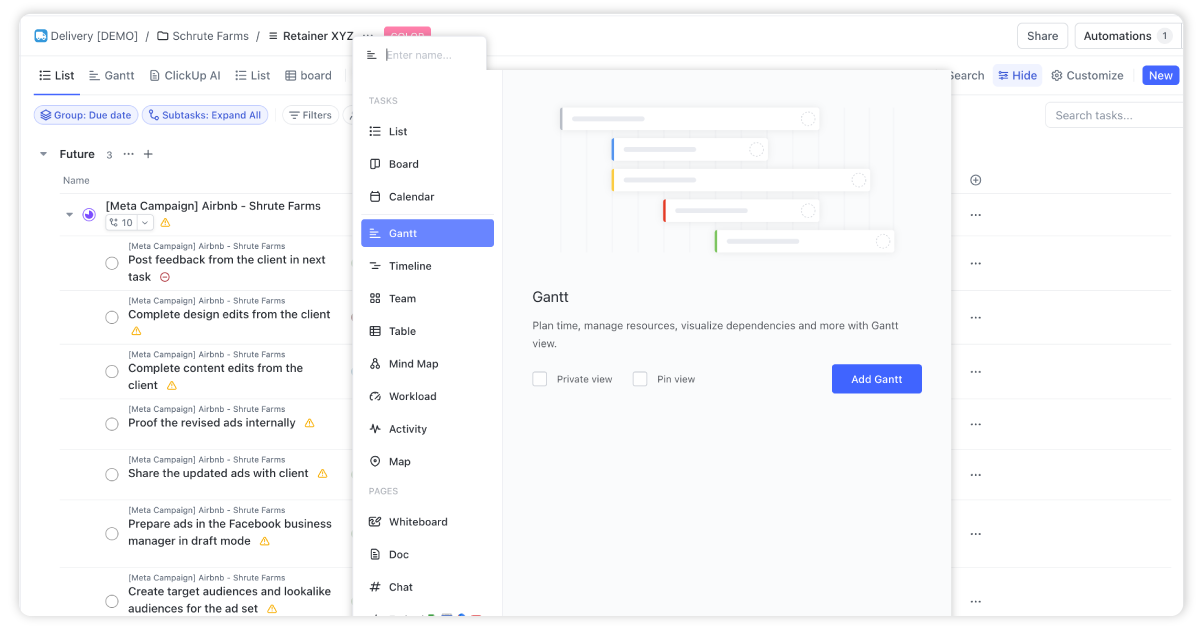
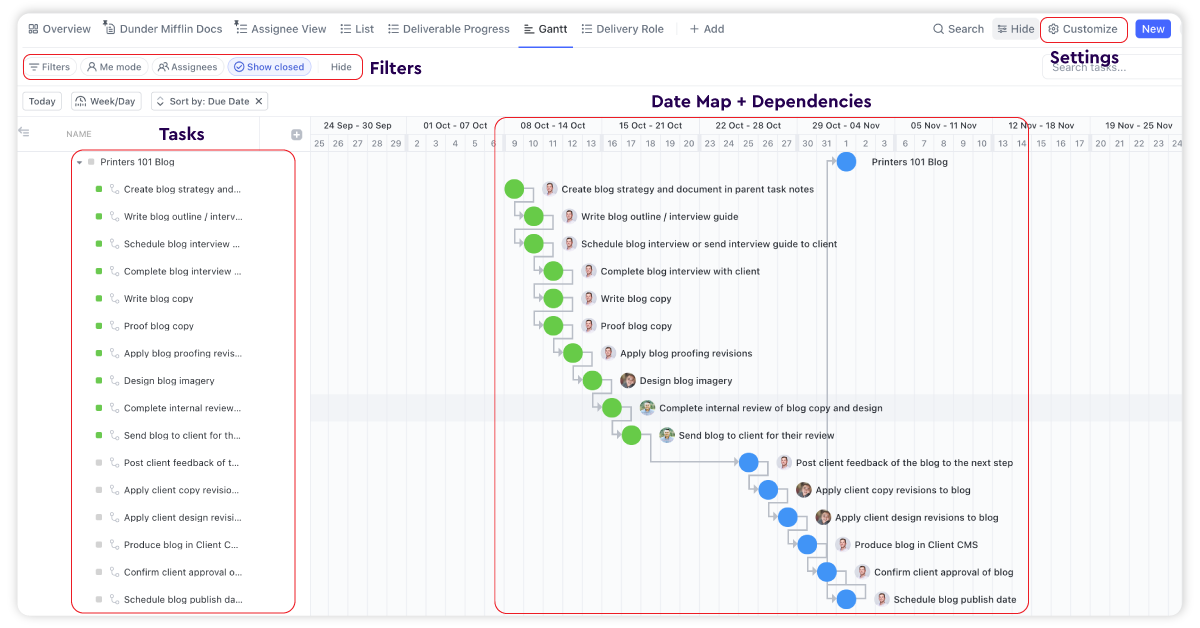
But, since you’re here, let me give you the rundown of the most important components to the Gantt view.
- Filters - Your filters are where you can choose to hide or show tasks that have certain custom fields, assignments, or statuses. I’d recommend you leave your Gantt views unfiltered to give us a nice birds-eye view of projects.
- Tasks - You’ll be able to see all of your task names on the left hand menu within the Gantt. You have options to add additional columns to this view, but I’d leave it basic to not take up space.
- Date Map + Dependencies - In the main space within the Gantt chart, you’ll have an awesome spot to add in due dates and dependencies, remap due dates, and skip the weekends.
- Settings - This will be important because you’ll have the options to both reschedule tasks with your dependencies, and the option to show or hide weekends.
The Benefits of The Gantt View
Before we dig into our Gantt view use-cases, let’s take a step back to understand why the Gantt view is so valuable for teams using ClickUp. At its core, the Gantt view provides a visual timeline of tasks and projects. This allows teams to map out schedules and see the big picture at a glance. Some key benefits include:
- Schedule projects thoroughly - Plan out realistic timeframes for each stage of a project. Ensure sufficient time for client reviews and revisions.
- Manage dependencies - Visually sequence tasks that have dependent relationships.
- Shift deadlines easily - Reschedule projects by dragging and dropping tasks on the Gantt chart.
- Avoid weekend work - Auto-shift delayed tasks from weekends to weekdays.
- Streamline workflows - Create templates with due dates and dependencies baked in to replicate.
- Work smarter - Make better resource and scheduling decisions when you can visualize timelines.
Overall, the Gantt view can significantly boost the productivity of your project managers who spend a bulk of their time remapping and readjusting projects.
Download the Complete ClickUp for Agencies Guide
The 47-page guide includes graphics, checklists, and links to how-to videos so you can actionize your ClickUp plan.
Get Instant Access →ClickUp Gantt Chart vs Timeline View: Which Should You Use?
These two views get confused constantly because both show tasks across time. The difference comes down to what you need the view to do.
The Gantt view visualizes tasks and dependencies over time. It’s built for project management: you can see how individual tasks tie into the overall project timeline, and you can reschedule work using those dependencies. When one task slips, the Gantt shows you (and reshuffles) everything downstream.
The Timeline view shows tasks on a timeline with a clear visual of task durations and where they overlap. No dependency lines, no rescheduling engine. Just a clean picture of what’s happening when.
So here’s the simple decision:
- Choose Gantt when you’re actively managing a project - sequencing work with dependencies, watching the critical path, and rescheduling when dates move.
- Choose Timeline when you’re communicating a roadmap - showing a client or leadership what’s happening when, without the visual weight of dependency lines.
Most project managers we work with live in the Gantt view and use Timeline as a presentation layer. If you want a rundown of every view and when to use each, our ClickUp Views guide covers all of them.
New in 2026: Gantt Auto-Scheduling
In June 2026, ClickUp shipped auto-scheduling for the Gantt view: parent tasks now reshuffle automatically when dates move, and rescheduled work skips weekends. Shift one date in a dependency chain and everything downstream reschedules on its own.
That’s a big deal for the rescheduling workflow below. What used to require manual toggles and drag-and-drop now happens by default. We covered the release on ClickUp Weekly if you want to see it in action.
Dependencies, Milestones, and the Critical Path
Three concepts do most of the heavy lifting in any Gantt setup. Get these right and the view manages itself.
Dependencies - Dependencies are the relationships between tasks that say “this can’t start until that finishes.” They’re also what powers auto-scheduling. Under the hood, ClickUp’s rebuilt scheduling engine propagates date changes across durations, dependencies, parent-child relationships, and non-working days. Move one date and everything downstream reschedules on its own. Parent task dates now auto-remap from their subtasks too: the parent’s start matches the earliest subtask start, and its due date matches the latest subtask due.
Milestones - Milestones mark the moments that matter: a launch date, a client approval, a phase handoff. They exist to make big checkpoints stand out from the day-to-day tasks around them, so anyone scanning the Gantt can see where the project pivots.
The critical path - The critical path is the chain of dependent tasks that determines your earliest possible finish date. Seeing it is one of the core reasons to use a Gantt view in the first place: it tells you which delays actually move your deadline and which tasks have slack. When a client asks “can we still hit the date?”, the critical path is your answer.
One more note on planning: dependencies and auto-scheduling handle the mechanics, but AI is starting to handle the thinking. If you want to see where that’s headed, our guide to ClickUp’s AI features covers how teams are using AI for planning and workspace automation.
The Top Two Ways to Leverage ClickUp’s Gantt View
The Gantt view essentially provides a command center for teams to control projects. Let’s look at how to tap into its capabilities.
1) Create Due Dates and Dependencies for Process Templates
The first way to maximize the Gantt view is to build due dates and dependencies into your reusable process templates. These templates act as playbooks that map out the stages and steps required to complete common projects like social media campaigns, blog posts, email nurturing sequences, etc.
For more information on leveraging ClickUp templates, and building out your processes, I’d suggest you read our ClickUp for Agencies Guide.
Step #1: Map Out Task Stages
Start by mapping out the stages a project will move through from start to finish.
For a blog project, this could involve stages like:
- Research topic
- Interview client
- Write first draft
- Create graphics
- Send draft to client for feedback
- Incorporate client edits
- Final review and approval
- Publish post
Step #2: Add Due Dates
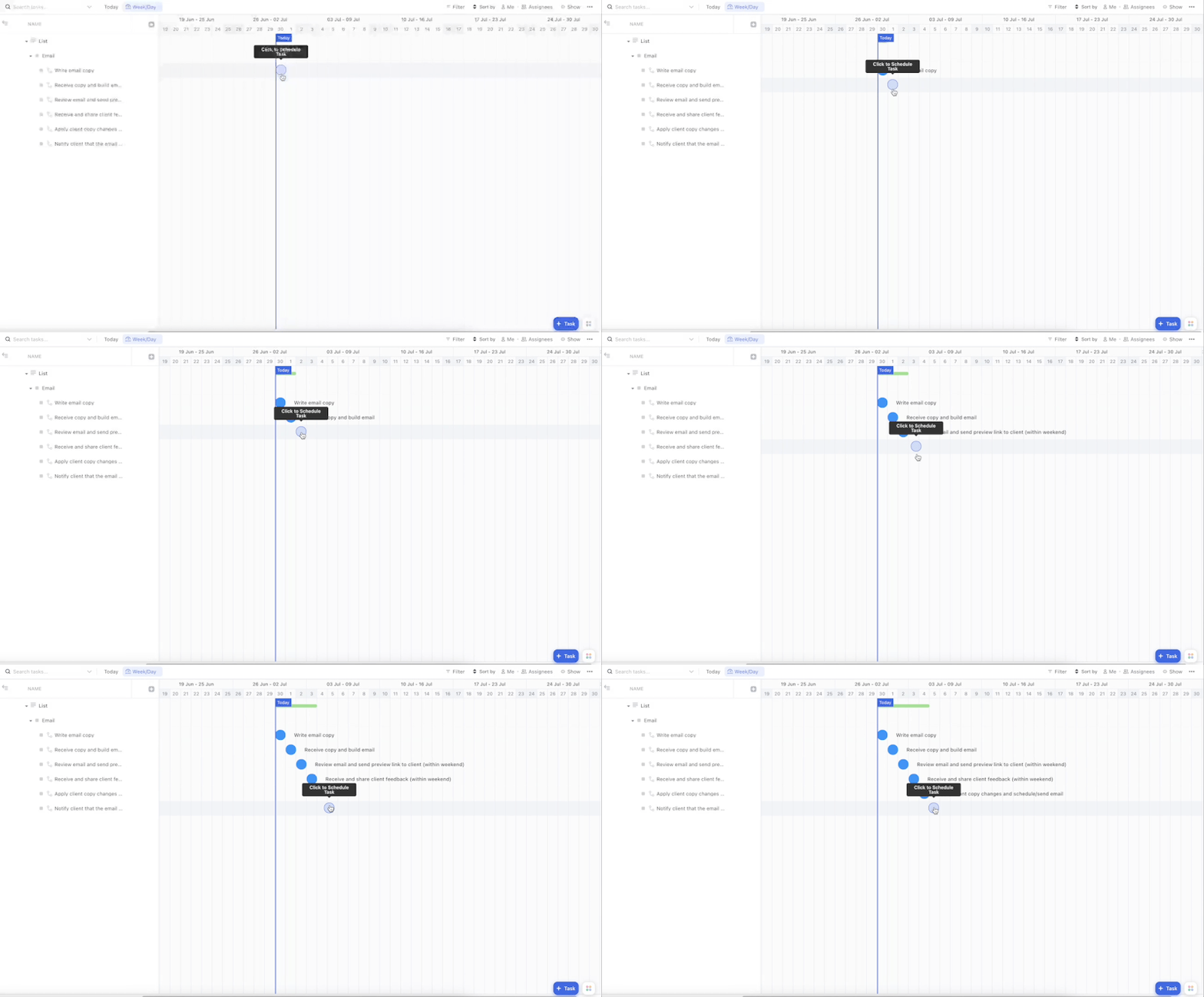
Next, add realistic due dates to assign timeframes for each task or stage. Rather than tediously entering due dates individually in the List view, you can quickly assign them in the Gantt view. Just click on each task and schedule it out chronologically. The specific dates aren’t too important, since these will be remapped when the template is used. Maintaining the relative distances keeps timeframes realistic.
Step #3: Set Up Dependencies
Now set up dependencies between stages to sequence the workflow. Click and drag tasks in the Gantt View to link dependent stages. Dependencies create the critical path to keep projects flowing smoothly. And they help you remap due dates in the future (but more on that later).
Step #4: Create Reusable Templates
When your template has tasks, due dates, and dependencies mapped out, save it as a reusable template. Now when you kick off a new blog project, simply use the template. The due date placeholders get remapped to real dates, while the task dependencies remain intact. This saves agencies enormous time compared to rebuilding project plans from scratch every time. Your team can deliver work faster using these pre-built process templates.
2) Reschedule Projects and Skip Weekends
Another Gantt view superpower is the ability to rapidly reschedule projects when delays arise. It can be difficult to predict project timelines 100% accurately, especially with external stakeholders. When the unexpected happens, the Gantt view lets you easily shift deadlines rather than blow them.
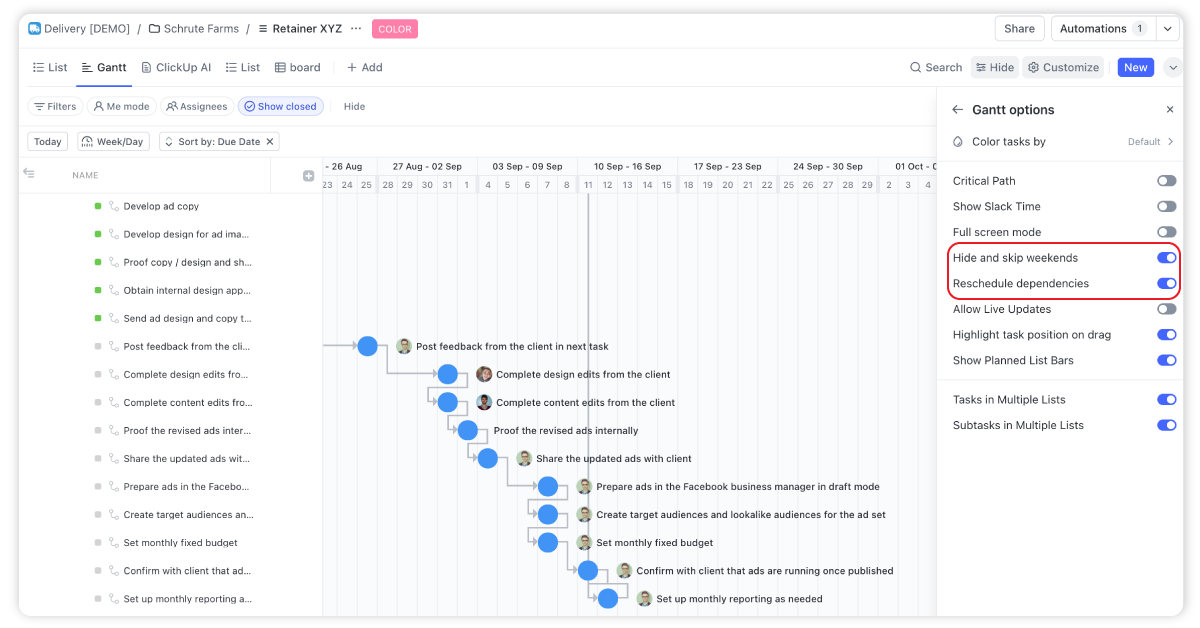
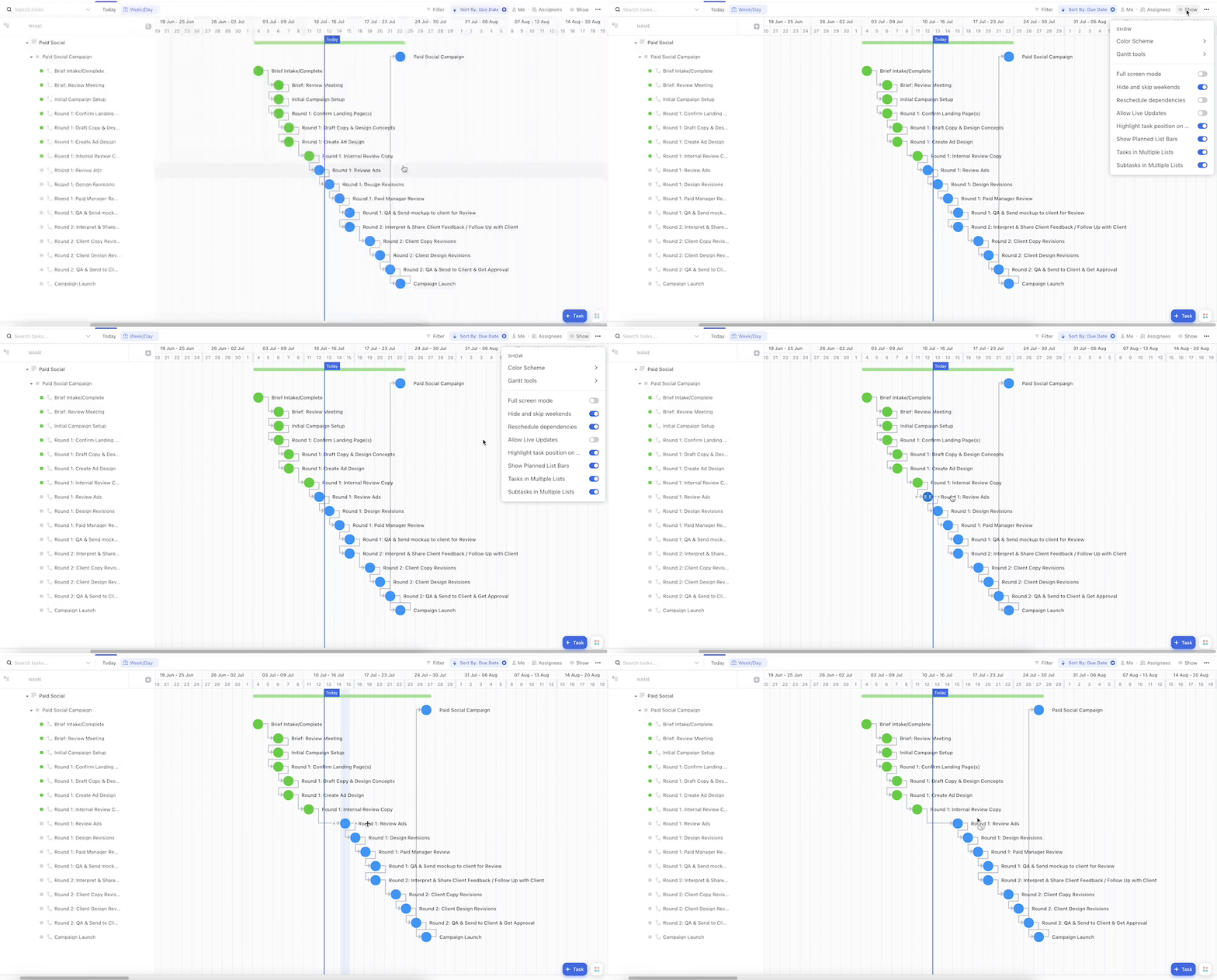
Since the June 2026 auto-scheduling release, this is the default behavior: dependency chains reshuffle automatically when dates move, and rescheduled work skips weekends. If your view isn’t behaving that way, click “Customize” in your Gantt view and check that “Reschedule dependencies” and “Hide and skip weekends” are turned on.
Reschedule Entire Projects
Say a blog project gets held up waiting for client feedback. Simply grab the parent task in the Gantt View and drag left to push back all the downstream due dates at once. The dependencies you set up rearrange subsequent tasks automatically based on the new parent task date, and with auto-scheduling, parent tasks reshuffle on their own too. No tedious manual editing required!
Skip Weekends to Optimize Schedules
As you’re shifting deadlines, weekend skipping keeps the schedule clean. It prevents resources from being scheduled on Saturdays or Sundays. Any task ending up on a weekend will automatically roll over to Monday. This ships as part of the 2026 auto-scheduling behavior, with the “Hide and skip weekends” toggle as your fallback if it’s off.
This is big. Don’t schedule work for your team on the weekends if you want to avoid team burnout.
Final Thoughts
There are two easy ways you can instantly boost your team’s productivity inside ClickUp.
And this is just the beginning. If you want to continue to build a more productive, profitable, and healthy team inside ClickUp, you need to:
- Design the correct ClickUp hierarchy
- Leverage the power of ClickUp views
- Build your processes
- Create healthy communication habits
- And choose the right ClickUp plan
FAQ: ClickUp Gantt Charts
Is ClickUp’s Gantt chart free or plan-gated?
It depends on your plan, and ClickUp adjusts plan gating often enough that any specific answer here would go stale. Check ClickUp’s plan comparison for the current breakdown of what each tier includes. If you’re deciding between tiers, our guide to choosing the right ClickUp plan walks through the tradeoffs.
How do I auto-schedule dependent tasks in ClickUp?
As of June 2026, this happens automatically. ClickUp rebuilt its Gantt scheduling engine so date changes propagate across durations, dependencies, parent-child relationships, and non-working days. Set up your dependencies, and when one date moves, everything downstream reschedules on its own. Parent task dates can also auto-remap from their subtasks, which you enable per list via right-click or List Settings.
Can ClickUp’s Gantt chart skip weekends?
Yes. The Skip Non-Working Days feature schedules task durations around weekends and your configured days off automatically. The key word is consistently: it holds across reschedules, subtask remaps, and automations, so your timeline doesn’t quietly drift onto a Saturday.
What are Gantt baselines, and does ClickUp have them?
A baseline is a snapshot of your original project plan that you compare against actual progress, so you can see exactly where a project drifted and by how much. ClickUp doesn’t have baselines yet, but they’re on ClickUp’s 2026 roadmap. We’ll cover the release on ClickUp Weekly when it ships.
Want a Gantt Setup Your Team Will Actually Use?
Gantt views only save time when the foundation underneath them is right: a clean hierarchy, consistent due dates, and dependencies your team actually maintains. That’s the part most teams skip, and it’s why so many Gantt charts end up abandoned.
We’ve built that foundation for 3,100+ clients as ClickUp’s highest-rated Solutions Partner. If you’d like a second set of eyes on your setup, book a free call and we’ll talk through it. No pressure either way.