
Everything You Need to Know About ClickUp Views
Views are one of ClickUp’s most powerful features. BUT, they can also be one of the most overwhelming features for most ClickUp users - both new and experienced. There is a lot to know about ClickUp views and how they work. If you’re looking to achieve clarity and visibility in your workspace, mastering views is a crucial step to take.This guide unpacks all the basics of ClickUp views, including the importance of the hierarchy, different types of views, columns, filters, grouping tasks, and view settings.
Unpacking the Basics of ClickUp Views
In ClickUp, there are six components that you need to fully understand before creating views in your workspace. And, at the heart of this, is understanding ClickUp’s Hierarchy.
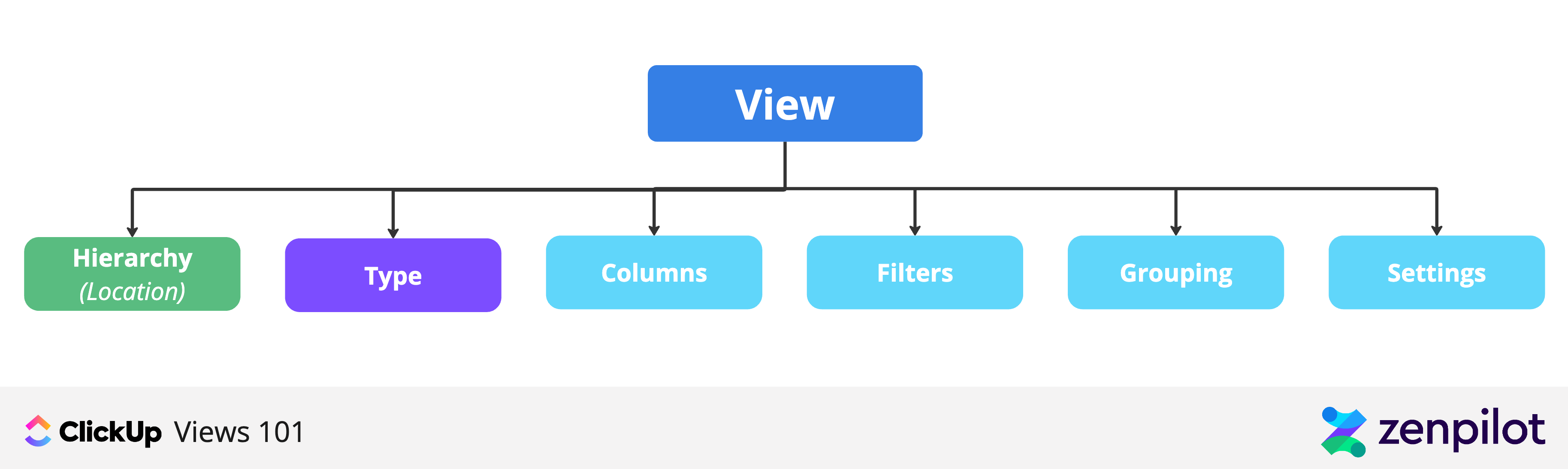
1. Understanding ClickUp’s Hierarchy
Before diving into the core topic of views, it is essential to understand the hierarchical structure of ClickUp. I suggest you read this article, “The Best ClickUp Hierarchy for Agencies”, first.
This structure serves as the backbone upon which ClickUp functions. It reflects your organization, the tasks, the projects, and the teamwork that goes into keeping things running smoothly.

Why is ClickUp’s Hierarchy Important for Views?
- Views can be built at ANY level in your ClickUp hierarchy.
- Views will show ALL tasks below that level of the hierarchy that the view is built on (i.e. a Space level view will show you all tasks in the folders and lists that fall within that space).
Therefore, If you want your views to show you meaningful information, you need your hierarchy to be built correctly. (i.e. if you want to see work across all of your active clients, you need to have a space dedicated to client work).

2. Different Types of Views in ClickUp
In addition to incorporating ClickUp’s views into your hierarchy, it’s also important to know the different types of ClickUp views.
- List View: The most straightforward view, it presents tasks in a simple list format. You can easily add, remove, or reorder tasks in this view. This is the default view when you create a new space, folder, or list.
Here is a view that we recommend creating right out of the gate.
- Board View: Ideal for those who prefer a more visual representation of tasks, it presents tasks as cards moving across different columns (typically representing various task statuses).
- Calendar View: Offers a temporal representation of tasks, showing when each task starts, ends, and is due. It’s perfect for tracking deadlines and creating content calendars.
- Gantt View: Allows you to visualize tasks and dependencies over time. It’s excellent for project management, helping you keep track of how individual tasks tie into the overall project timeline. We use this view to reschedule work using dependencies. Check out this video here.
- Table View: Combines the simplicity of List view with the added dimension of data fields for each task (like in a spreadsheet). It’s great for those who are looking to show a variety of custom fields in one spot.
- Map View: Visualizes tasks based on location. This can be most helpful if you build a CRM within your ClickUp workspace.
- Activity View: Provides a live feed of all the activities related to tasks. It’s perfect for real-time tracking and monitoring progress.
- Box View: A unique view that groups tasks by assignee, giving you an instant understanding of each team member’s workload.
- Timeline View: Shows tasks on a timeline, offering a clear visual of task durations and when they overlap.
- Workload View: Helps you visualize your team’s capacity, making it easier to manage resources and avoid over or under-booking.
**💡 Pro Tip **- This view is tied to assignees, due dates and time estimates. If you want this to be useful, you NEED to make sure you have those three ingredients on every task in your workspace.
Each of these views serves a specific purpose and provides a different perspective on your tasks. Understanding the purpose of each view and when to use it is critical in making the most out of ClickUp.
BONUS
Download the Complete ClickUp for Agencies Guide FREE
The 47-page guide includes graphics, checklists, and links to how-to videos so you can actionize your ClickUp plan.

In addition to these task-based views, you also have the opportunity to create documents, whiteboard, forms, chats and embed views (i.e. a Google Doc, Miro Board, Spreadsheet, etc.) into ClickUp!
We could spend hours talking about every view type, but that’ll be for the more advanced guide on views. Stay tuned. 😎
3. Columns Within ClickUp Views
Most views in ClickUp have different Columns shown within the view. You can add, hide, or modify columns based on the information your team needs to see.
For instance, within a column, you can display different ClickUp fields or custom fields to suit your specific requirements.
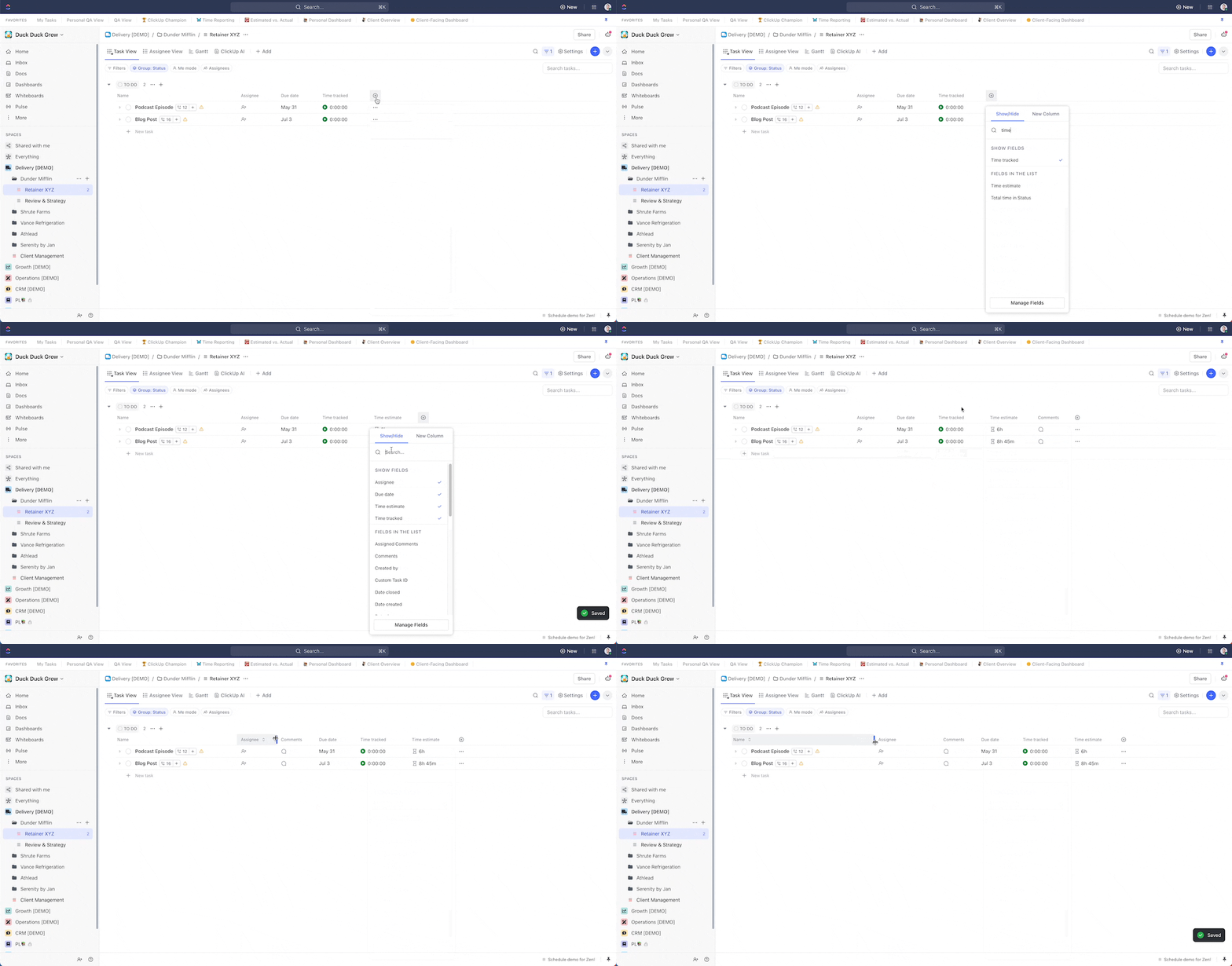
Make sure to display the essential columns when setting up a view, as this standardization will help your team understand what they will see when accessing a specific view.
You can add or hide columns based on your requirements, resize them for better readability, and even save a template in the ClickUp template center to streamline the view creation process. There’s a video at the bottom of this article that walks through this process.
How to set up columns in your Views:
- Start with the default columns provided by ClickUp.
- Customize columns by clicking on the ’+ Column’ button (far right)
- Add or hide columns as per your requirements. Be mindful of not adding too many columns as it may make your view cluttered.
- Move them left or right to display exactly how you want them ordered.
- Try to maintain a standardized set of columns across your team for consistency.
4. Filtering Tasks in Views
The ability to filter views are a powerful (but intimidating) feature in ClickUp. Within views you can narrow down and view tasks that meet specific parameters or conditions.
This is where a lot of the power can be unleashed in ClickUp.
Filters can be applied based on task attributes like status, due date, assignee, priority, tags, and more. You can also create custom filters based on custom fields.
If you’ve built your hierarchy correctly, and incorporated custom fields (more on this in our 47-page ClickUp for Agencies Guide), filters will help you create custom views for members at any level in your organization.
- Individual contributors can filter tasks to only tasks assigned to them.
- Account and Project managers can see all deliverables and projects associated with their clients.
- Leadership can see all projects, their progress, and whether they are on-track or off-track.
