
ClickUp vs Notion: Detailed Comparison & 2026 Decision Guide

Both tools are great.
I mean that. ClickUp and Notion are two of the best products in the productivity space. Both have passionate user bases. Both keep shipping impressive features.
But they’re built for fundamentally different jobs.
Pick the wrong one and you’ll spend six months forcing a square peg into a round hole - then start the search all over again.
So here’s the answer upfront:
ClickUp is for running operations. Project management, time tracking, automations, workload visibility, reporting, profitability tracking. If your business runs on repeatable processes and you need to hold a team accountable to deadlines - ClickUp.
Notion is for organizing knowledge. Wikis, documentation, internal databases, content creation. If you need a beautiful, flexible home for your team’s collective brain - Notion.
We’ve helped 3,100+ clients implement ClickUp as their operational backbone. ZenPilot is ClickUp’s #1 rated Solutions Partner. We see what works and what doesn’t - across every industry, team size, and use case imaginable.
This isn’t a neutral comparison. We have a point of view. But it’s earned through thousands of implementations, not marketing spin.
Key Takeaways
- ClickUp is the stronger choice for operations teams. It handles task management, time tracking, automations, dashboards, and reporting natively in one platform - based on 3,100+ implementations.
- Notion wins for knowledge management. Its block-based editor, synced blocks, and wiki structure are best-in-class for documentation and internal resources.
- ClickUp is more cost-effective for teams that need operational depth. At $12/user/month (Business), you get time tracking, workload views, and 50+ dashboard widgets included. Notion at $10/user/month (Plus) still requires separate tools for time tracking and reporting.
- Most operations-focused teams should consolidate into ClickUp. Running both tools works for some teams, but maintaining two systems adds friction and cost as you scale.
TL;DR - The Quick Comparison
| Category | ClickUp | Notion | Winner |
|---|---|---|---|
| Task Management | Custom statuses, fields, time tracking, dependencies, workload views | Basic Kanban, database views, simple properties | ClickUp |
| Docs & Wiki | Good and improving fast, nested pages, task embedding | Best-in-class block editor, infinite nesting, synced blocks | Notion |
| Automations | 100+ templates, custom triggers/conditions/actions | Basic database automations, relies on Zapier/Make | ClickUp |
| Reporting & Dashboards | Fully customizable dashboards, 50+ widget types | No native reporting or dashboards | ClickUp |
| Collaboration | Assigned comments, guest access, real-time editing | Inline comments, mentions, granular page permissions | Tie |
| Customization | Custom fields, hierarchy, 15+ views, formulas | Block system, database views, templates | ClickUp |
| Integrations | 1,000+ native integrations | Smaller but growing library, strong API | ClickUp |
| Ease of Getting Started | Powerful but steeper learning curve | Clean, intuitive, fast to set up | Notion |
| Pricing | $0-$12/user/month for core tiers | $0-$18/user/month for core tiers | ClickUp (slight edge) |
| Overall for Operations | Built for running a business | Built for documenting one | ClickUp |
Now let’s break each one down.
Task Management
This is the core of why most teams compare these tools in the first place. You need to manage work. Assign it, track it, report on it, make sure nothing falls through the cracks.
ClickUp was built for this from day one.
Statuses and Workflows
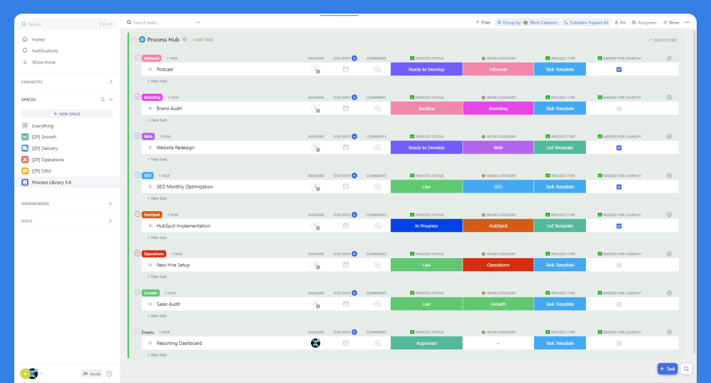
Every list in ClickUp gets its own custom statuses. Your design team can run “Brief Received > In Design > Internal Review > Client Review > Approved.” Your dev team can run “Backlog > Sprint > In Progress > QA > Deployed.” Your accounting team can run “Invoice Created > Sent > Paid.”
Notion gives you a single select property. You can name the options whatever you want, but there’s no workflow logic attached. No status-change triggers. No “when this moves to QA, assign it to the QA lead.” It’s a label, not a workflow engine.
Custom Fields
Custom fields are ClickUp’s superpower. Dropdown, text, number, currency, date, checkbox, email, phone, formula, relationship, rollup, rating, progress bar, location, files - the list keeps growing.
Want to track deal value, client tier, service type, and estimated hours on every project? Create those fields once and they cascade across your workspace. Filter by them. Sort by them. Build dashboard widgets from them. Roll them up into reports.
Notion has properties on databases - and they’re solid. Text, number, select, multi-select, date, formula, relation, rollup. But the formula language is less intuitive than ClickUp’s, and you can’t use properties to drive automations or build operational dashboards the same way.
Time Tracking and Estimates
ClickUp has native time tracking built into every task. Start a timer, log time manually, add time estimates, see actual vs. estimated at the task, project, and workspace level. This data feeds directly into dashboards, workload views, and profitability reports.
This is a massive differentiator for operations teams. If you bill by the hour, track utilization, or need to understand where your team’s time goes - ClickUp handles it natively.
Notion has no time tracking. Zero. You’d need a third-party tool like Toggl or Harvest, plus an integration to sync the data back. That’s additional cost, additional friction, and data that lives outside your project management system.
Dependencies and Relationships
ClickUp supports task dependencies (waiting on, blocking), task relationships (related to), and these show up visually in Gantt and Timeline views. You can see the critical path. You can identify bottlenecks before they become problems.
Notion has relation properties between databases, which is useful for linking records. But there’s no concept of “this task is blocked until that task finishes.” No Gantt chart. No dependency visualization.
Recurring Tasks
ClickUp handles recurring tasks natively. Set a task to recur daily, weekly, monthly, or on a custom schedule. When the task is completed, a new instance creates automatically with the same assignees, checklists, and custom field values.
For teams running repeatable deliverables - weekly reports, monthly reviews, quarterly planning - this eliminates the “did someone remember to create the task?” problem.
Notion doesn’t support recurring tasks natively. You’d need to use automations through Zapier or build a workaround with database templates.
Workload and Capacity
ClickUp’s Workload view shows each team member’s assigned work against their capacity. You set capacity in hours per day, and the view calculates whether someone is underloaded, at capacity, or overloaded based on time estimates.
This view alone has saved our clients from countless missed deadlines and burnout situations. When you can see that your senior designer has 60 hours of work assigned for a 40-hour week, you redistribute before things break.
Notion has no workload view. No capacity planning. You’d need to export data to a spreadsheet to do this analysis manually.
Views
ClickUp offers 15+ view types: List, Board, Calendar, Gantt, Timeline, Table, Workload, Map, Mind Map, Activity, Form, Whiteboard, Doc, and more. Each view can be filtered, sorted, grouped, and saved. You can create personal views or shared team views.
Notion offers List, Board, Calendar, Timeline, Gallery, and Table views on databases. They’re clean and functional. But you don’t get Gantt charts, Workload views, or the depth of filtering options that ClickUp provides.
Bottom line: Task management isn’t just a category ClickUp wins. It’s the reason ClickUp exists. If managing work is your primary need - assigning it, tracking it, understanding capacity, hitting deadlines - the gap between these two tools is significant.
Docs & Knowledge Base
Credit where it’s due.
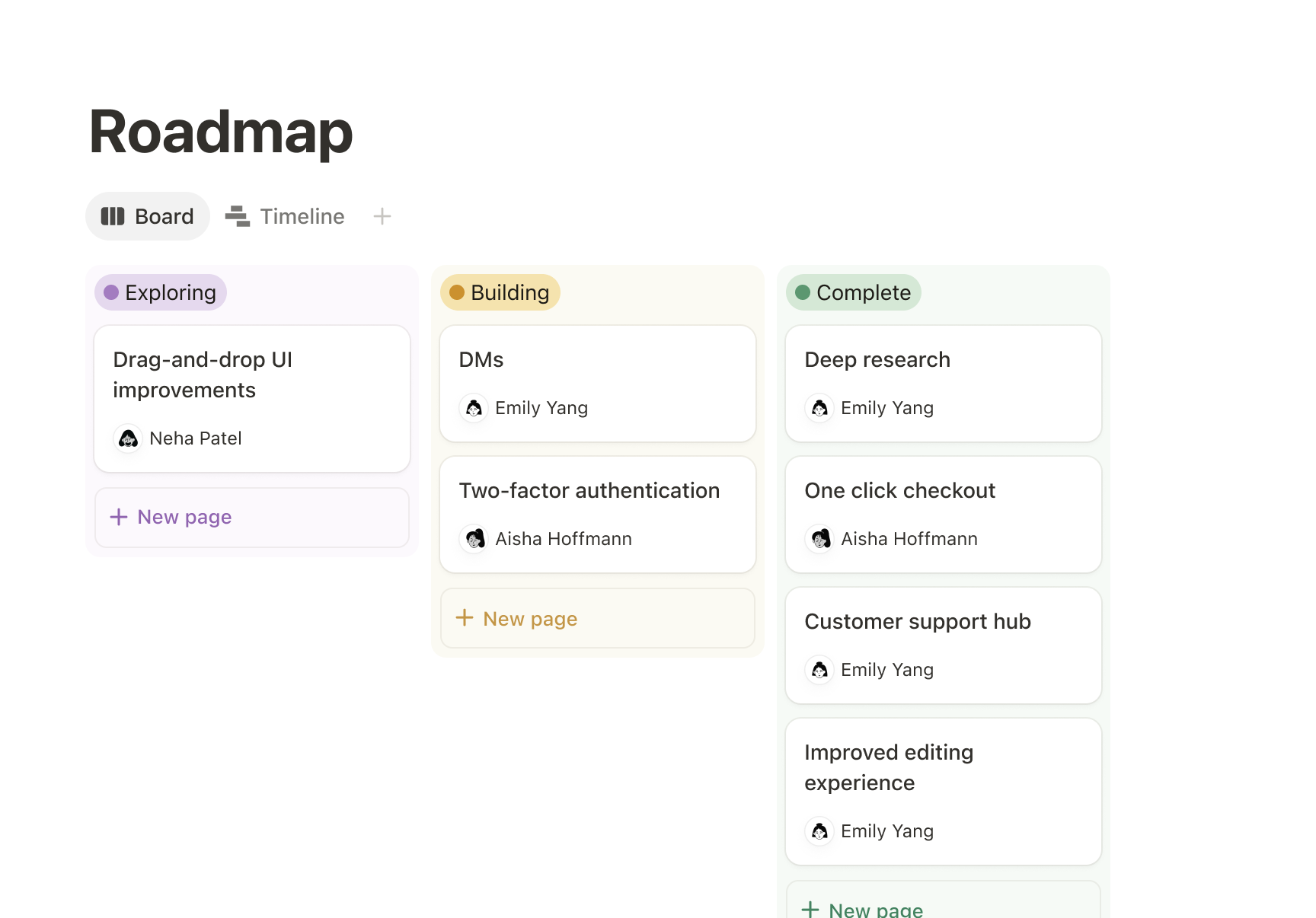
Notion’s documentation experience is genuinely excellent. The block-based editor is elegant, intuitive, and powerful. Drag and drop content blocks. Nest pages infinitely. Embed databases inside docs. Toggle sections, callouts, synced blocks.
Notion’s Block System
Everything in Notion is a block. Text, headings, images, code snippets, embeds, databases, toggles, callouts, dividers, tables, bookmarks - they’re all blocks that you can rearrange, nest, and combine freely.
This makes Notion exceptionally flexible for building knowledge bases. Your team wiki can have a top-level page for each department, nested sub-pages for processes, embedded databases for tracking resources, and toggle sections for FAQs. The structure mirrors how people actually think about organizing information.
Synced blocks let you write content once and display it across multiple pages. Update it in one place, and it updates everywhere. For SOPs that reference shared procedures, this is genuinely useful.
Notion’s Templates
Notion templates are powerful. Create a template for meeting notes, project briefs, client onboarding docs - anything your team creates repeatedly. New team members can hit “New from template” and get a perfectly structured page ready to fill in.
The Notion template gallery has thousands of community-created templates. Many are excellent starting points that save hours of setup.
ClickUp Docs
ClickUp has Docs - and they’ve improved dramatically. You can create rich-text pages, nest them hierarchically, embed ClickUp views inside docs, share them publicly, and collaborate in real time. The editing experience is clean and functional.
ClickUp’s biggest Docs advantage is context. A Doc lives inside your workspace alongside the tasks, projects, and data it relates to. You can embed a live task list view inside a project brief. You can link a Doc to a specific folder. The documentation and the work live together.
But the editing experience is still a step behind Notion. The block system isn’t as fluid. The formatting options aren’t as extensive. The page-building flexibility isn’t as creative.
ClickUp knows this. They’ve invested heavily in Docs over the past two years, and the gap is narrowing. But Notion’s head start here is real.
The Two-System Question
Many teams use both tools: ClickUp for operations, Notion for the wiki. It’s a valid setup, though it means maintaining two systems. Context splits across platforms. Links between systems require manual effort.
If you’re willing to accept “good enough” docs inside ClickUp, you can consolidate into one platform - and for most teams, that tradeoff is worth it. One system to maintain. One place to search. One login for your team.
Bottom line: If documentation and knowledge management are your primary need, Notion is the better tool. If you need both docs and operations, ClickUp can handle both - but Notion’s docs experience is superior.
Automations & Workflows
Repeatable processes are the backbone of scalable operations. Automations turn those processes from “things we hope people remember to do” into “things that happen automatically.”
ClickUp’s automation engine is powerful.
ClickUp’s Automation Builder
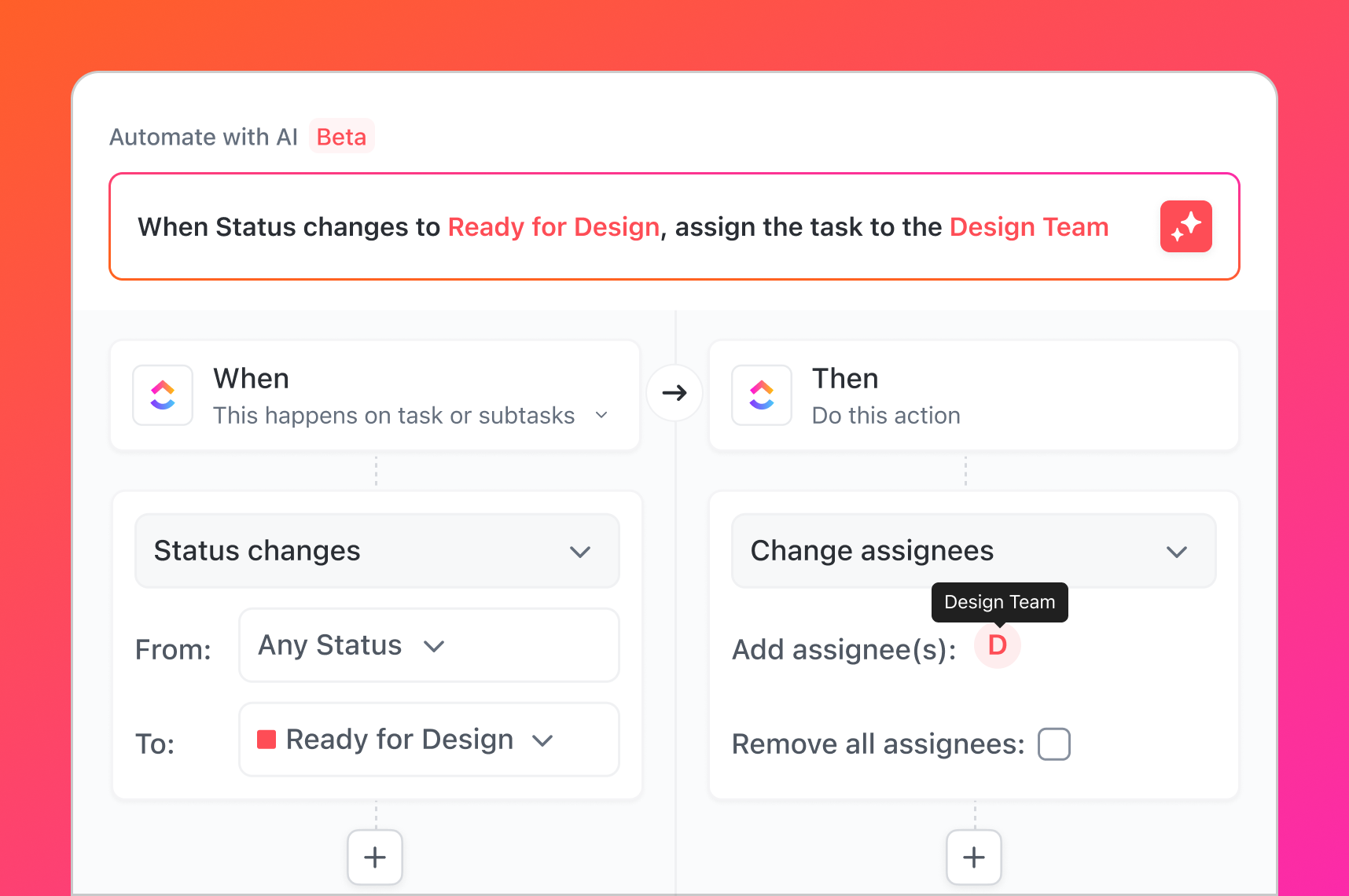
The builder works on a simple but flexible model: trigger + condition + action.
- Triggers fire when something happens: a status changes, a field updates, a due date arrives, a task is created, a task is moved, a checklist is completed, a comment is added.
- Conditions filter when the automation should run: only if the priority is urgent, only if the custom field equals a specific value, only if the assignee is a certain person.
- Actions execute the work: assign the task, change the status, update a field, move the task to a different list, send a notification, create a new task, add a comment, call a webhook.
You can chain multiple actions in a single automation. And you can build multi-step workflows where one automation’s output triggers the next.
Real-World Automation Examples
Here are automations we build with clients regularly:
- Client onboarding: When a deal moves to “Closed Won” in your CRM, a webhook triggers ClickUp to create a full project from a template, assign the onboarding team, set due dates based on the start date, and notify the account manager.
- QA workflows: When a task moves to “Ready for Review,” automatically assign it to the QA lead and add a checklist of review criteria.
- Recurring deliverables: When a monthly report task is completed, automatically create next month’s instance with the same structure.
- Escalation rules: If a task stays in “Blocked” for more than 48 hours, notify the project manager and change the priority to urgent.
- Client notifications: When a task moves to “Client Review,” automatically send an email to the client contact stored in a custom field.
ClickUp also provides 100+ pre-built automation templates covering common workflows, so you don’t have to build everything from scratch.
Notion’s Automations
Notion added native automations in 2023, and they’ve continued to improve. You can trigger actions when database properties change - like sending a Slack notification when a status updates, or assigning a page when it’s added to a database.
But the depth isn’t there yet. Fewer trigger types. Fewer action types. Limited conditional logic. No multi-step automation chains. No webhook triggers for external system integration.
Notion users who need serious automation still rely on Zapier or Make. That works, but it adds $20-50+/month in tool cost and introduces complexity. The automations live outside your workspace, making them harder to audit, debug, and maintain.
Integration with External Tools
ClickUp’s native Zapier and Make integrations are deep - hundreds of triggers and actions. The ClickUp API is also well-documented for custom integrations. Combined with native automations, you can build sophisticated cross-platform workflows without writing code.
Bottom line: If you run repeatable processes and want to automate them natively, ClickUp is significantly ahead. Notion’s automations are improving but still basic compared to what ClickUp offers out of the box.
Reporting & Dashboards
This is where the gap is widest.
It’s not even a fair comparison.
ClickUp’s Dashboard Power
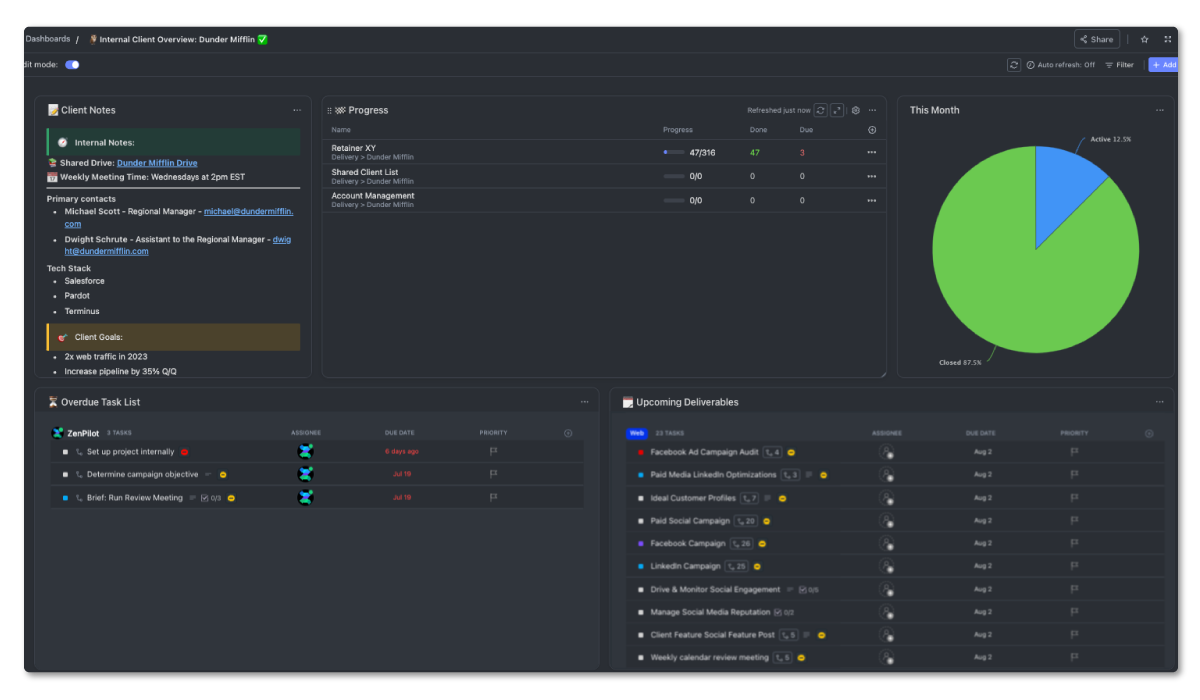
ClickUp dashboards are fully customizable with 50+ widget types. You build a dashboard by dragging widgets onto a canvas and configuring each one to pull specific data from your workspace.
Here’s what you can build:
- Time tracking reports - hours logged vs. estimated, broken down by person, project, client, or date range. See who tracked 38 hours last week and who tracked 12.
- Workload widgets - visualize capacity across your team. Spot overallocation before it causes missed deadlines.
- Status breakdowns - pie charts or bar graphs showing how many tasks sit in each stage across all active projects.
- Sprint velocity - track team throughput over time. Are you completing more story points this sprint than last? Is velocity trending up or down?
- Goal tracking - set targets for tasks completed, revenue closed, hours tracked. Monitor progress in real time.
- Custom calculations - build formula-based widgets that pull from any custom field. Calculate average project duration. Track client profitability. Measure estimate accuracy.
- Client profitability - compare time spent against budgets and revenue. See which clients generate profit and which ones drain resources.
- Portfolio views - see all active projects with status, progress percentage, and health indicators in a single dashboard.
You can answer real business questions with ClickUp dashboards:
“Are we profitable on this client?” Build a widget comparing logged hours times your internal rate against the client’s retainer value.
“Who has capacity for new work?” Pull the workload widget filtered to the next two weeks.
“Which projects are behind?” Show tasks past due grouped by project, sorted by count.
“How does our actual time compare to estimates?” Create a calculation widget showing estimate accuracy by team or service line.
These aren’t hypothetical. We build these dashboards with clients every week.
What Notion Offers
Notion has database views - filtered, sorted, grouped in various ways. You can create rollup properties that aggregate data across related databases. The 2024 addition of simple charts (bar and line) on database views was a step forward.
But there are no real dashboards. No drag-and-drop widget builder. No time tracking data to report on (because there’s no time tracking). No workload visualizations. No formula-driven business intelligence.
If you want reporting in Notion, you export to a spreadsheet or connect a third-party BI tool. That’s a viable workflow, but it means your operational data and your reports live in different systems.
Why This Matters
Operations leaders need visibility. They need to know what’s happening across the business without checking ten different projects manually. They need to report to leadership on utilization, profitability, and delivery performance.
ClickUp gives you that visibility natively. Notion doesn’t.
Bottom line: Reporting is ClickUp’s superpower and Notion’s biggest gap. If operational visibility matters to you, this category alone may decide your choice.
Collaboration: Both Are Strong
Both ClickUp and Notion offer solid collaboration features. The differences are in the details.
ClickUp’s Collaboration Strengths
- Assigned comments - turn any comment into an action item with a specific assignee. The person gets notified and the comment appears in their task tray until resolved. This is one of the most underrated features in ClickUp.
- Real-time editing - multiple people can work on the same task description, Doc, or Whiteboard simultaneously.
- Guest access - invite clients or external collaborators to specific Spaces, Folders, or Lists without giving them access to your entire workspace. Set granular permissions for what guests can view, comment on, or edit.
- Proofing and annotation - upload images, PDFs, or videos and leave comments directly on the file. Great for creative review workflows.
- Chat view - a built-in messaging view within any list for quick team discussions that stay connected to the relevant project.
- Email integration - send and receive emails directly from tasks. Client communication stays attached to the work it relates to.
Notion’s Collaboration Strengths
- Inline commenting - leave comments anywhere within a page, not just at the task level. This is more flexible for document collaboration where feedback needs to reference specific paragraphs or sections.
- Mentions - use @ to loop team members into any page, database, or block. They get notified and can jump directly to the relevant content.
- Granular page permissions - control access at the individual page or database level. Useful for sensitive information that only certain team members should see.
- Real-time co-editing - Notion’s real-time collaboration on pages is smooth and responsive. Multiple people editing the same page feels natural.
- Guest access - invite external users with configurable permissions. The interface is straightforward for clients who aren’t technical.
Where They Differ
ClickUp’s collaboration is work-oriented. Assigned comments create accountability. Guest permissions protect operational data. Everything ties back to tasks and projects.
Notion’s collaboration is content-oriented. Inline commenting supports document review. Page-level permissions protect knowledge. Everything ties back to pages and databases.
Neither is objectively better. It depends on whether your collaboration centers on managing work execution or co-creating content.
Bottom line: Both platforms handle collaboration well. ClickUp edges ahead for operational teams that need accountability features like assigned comments and task-level guest access.
Customization and Scalability
How well does each tool adapt as your team grows from 5 people to 50? From 3 clients to 30?
ClickUp’s Hierarchy
ClickUp’s organizational hierarchy is purpose-built for scaling: Workspace > Spaces > Folders > Lists > Tasks > Subtasks.
This structure lets you mirror your business. One Space per department. Folders for each client or service line. Lists for individual projects or phases. Tasks for the actual work. Subtasks for the detailed steps.
As you grow, you add Spaces and Folders. The structure scales without collapsing. Your automation rules, custom fields, and statuses cascade down the hierarchy - set them once at the Space level and every new Folder and List inherits them.
Custom Fields at Scale
We mentioned custom fields earlier, but their value multiplies at scale. When you have 200 active projects, the ability to filter your entire workspace by “client tier = enterprise” or “service type = paid media” or “project health = at risk” becomes essential.
Custom fields also power ClickUp’s rollup capabilities. Aggregate values from subtasks to parent tasks. Roll up time estimates across a project. Sum revenue values across a portfolio. This is how you get from “managing tasks” to “managing a business.”
Notion’s Flexibility
Notion’s customization strength is its open-ended flexibility. The block system means you can build almost anything. Databases, wikis, dashboards (basic ones), project trackers, CRMs, habit trackers, recipe collections - the community has built it all.
But that flexibility cuts both ways. Notion doesn’t impose structure. There’s no hierarchy telling you “put clients here, projects there, tasks inside.” You have to design your own organizational system from scratch.
For small teams, that freedom is liberating. For growing teams, it becomes a liability. We’ve seen agencies, professional services firms, and marketing teams with Notion workspaces that grew organically into a maze of pages - no one knows where anything lives, naming conventions are inconsistent, and new team members take weeks to learn the system.
Scaling Pain Points
ClickUp’s scaling challenge is complexity management. More features means more decisions about how to configure them. Without a clear setup strategy, workspaces become cluttered with unused views, redundant fields, and inconsistent processes. (This is exactly what ZenPilot helps teams solve.)
Notion’s scaling challenge is structural fragility. Without built-in workflow features (statuses, dependencies, automations), teams create workarounds. Those workarounds multiply. Eventually the workspace becomes a collection of disconnected databases held together by manual effort.
Bottom line: ClickUp provides more built-in structure for scaling operations. Notion provides more creative freedom but requires more discipline to maintain as the team grows.
Integrations
Your project management tool doesn’t exist in isolation. It needs to connect with the rest of your tech stack.
ClickUp’s Integration Ecosystem
ClickUp offers 1,000+ native integrations spanning every category:
- Communication: Slack, Microsoft Teams, Zoom, Google Meet
- Design: Figma, Adobe Creative Cloud, InVision
- CRM: Salesforce, HubSpot
- Development: GitHub, GitLab, Bitbucket, Sentry
- File storage: Google Drive, Dropbox, OneDrive, Box
- Email: Gmail, Outlook (send/receive from tasks)
- Accounting: QuickBooks, Xero, FreshBooks (via Zapier)
- Forms: Typeform, Google Forms, JotForm
Beyond native integrations, ClickUp has deep connections with Zapier (hundreds of triggers and actions) and Make (formerly Integromat) for building custom workflows between any tools in your stack.
The ClickUp API is well-documented and robust. Teams with developers can build custom integrations for internal tools, proprietary systems, or niche platforms.
Notion’s Integration Library
Notion’s integration library is smaller but growing steadily. Key native integrations include Slack, Google Drive, GitHub, Jira, Figma, and Asana (for importing). The Notion API (released in 2021) opened up significant possibilities, and the ecosystem of third-party tools built on it has expanded rapidly.
Notion Connect allows you to embed content from external tools directly in pages. And the Zapier/Make integrations cover the most common automation scenarios.
Where Notion falls short is in operational integrations. There’s no native email integration. No native time tracking tool connections. No CRM sync. For a knowledge management tool, the integration set covers the essentials. For an operations platform, you’d want more.
API Capabilities
Both platforms offer solid APIs. ClickUp’s API covers tasks, lists, spaces, folders, comments, time entries, custom fields, goals, and more. Notion’s API covers pages, databases, blocks, users, and comments. Both support webhooks for real-time event notifications.
For teams building custom workflows, ClickUp’s API has more operational depth (time tracking, workload data, automation triggers). Notion’s API is well-suited for content and database operations.
Bottom line: ClickUp has a clear edge in breadth and depth of integrations, especially for operational workflows. Notion covers the essentials and has a strong API, but the ecosystem is still catching up.
Pricing (Updated for 2026)
ClickUp Pricing
| Plan | Price | What You Get |
|---|---|---|
| Free Forever | $0 | Unlimited tasks and members, 100MB storage, basic features |
| Unlimited | $7/user/month | Unlimited storage, integrations, dashboards, guests, custom fields |
| Business | $12/user/month | Advanced automations, time tracking, workload management, timelines, mind maps |
| Enterprise | Custom | SSO, advanced permissions, dedicated success manager, custom onboarding |
The jump from Free to Unlimited unlocks the features most teams need: unlimited storage, integrations, and dashboards. The jump from Unlimited to Business adds the operational power tools: advanced automations, native time tracking, and workload views.
The right plan depends on your team size, security requirements, and which features you need. Contact us for help determining the right ClickUp package and pricing for your situation.
Notion Pricing
| Plan | Price | What You Get |
|---|---|---|
| Free | $0 | Unlimited pages for individuals, 10 guest collaborators, 5MB file uploads |
| Plus | $10/user/month | Unlimited file uploads, unlimited blocks for teams, 30-day version history |
| Business | $18/user/month | SAML SSO, advanced permissions, bulk export, 90-day version history |
| Enterprise | Custom | Audit log, SCIM provisioning, dedicated success manager, custom contracts |
Notion’s free plan is generous for individuals but limited for teams. The Plus plan at $10/user/month is where most teams start. The Business plan at $18/user/month is needed for SSO and advanced permissions. Not sure which plan fits? Reach out and we’re happy to help you think through it.
Value Comparison
ClickUp is cheaper at every comparable tier. But the real difference is what you get for the price.
At ClickUp’s Business tier ($12/user/month), you get: project management, time tracking, automations, workload management, dashboards, goals, Docs, Whiteboards, and 1,000+ integrations. It’s a complete operations platform.
At Notion’s Plus tier ($10/user/month), you get: a powerful wiki and docs system, basic databases, and limited automations. It’s an excellent knowledge management tool.
If you need both knowledge management and operations management, ClickUp at $12/user/month is more cost-effective than Notion at $10/user/month plus a separate tool for time tracking ($10-15/user/month), project management, and reporting.
Bottom line: Pricing is roughly comparable, with ClickUp offering more operational value per dollar. The real cost difference shows up when you factor in the additional tools Notion teams need to fill the gaps.
AI Features: Where the Gap Is Closing
This is the comparison that’s changed the most since we first wrote this post. Both platforms now have serious AI capabilities - and they reflect each tool’s core identity.
Notion AI is bundled into Business plans ($20/user/month) and includes Ask Notion (plain-language Q&A across your workspace), AI Autofill (auto-populate database properties - classify, summarize, tag, prioritize), Notion Agents (autonomous multi-step tasks), Custom Agents (schedule-triggered, recurring), multi-model access (GPT-5, Claude, o3), and enterprise search across connected apps like Salesforce, Slack, and Google Drive.
ClickUp Brain is an add-on starting at $9/user/month and includes workspace-wide knowledge retrieval, automated standups and status reports, AI writing, Super Agents (AI coworkers you @mention and assign tasks to), multi-model access, and MCP integration for connecting external AI tools to your workspace.
Where Notion AI genuinely wins
Database reasoning. Notion AI Autofill is the standout feature. Because Notion databases are highly structured, the AI can reason across them with field-level precision - auto-classifying entries, extracting tags, generating summaries per row. ClickUp’s AI Fields are functional but not as deeply integrated with structured data.
Knowledge-first organizations. If your team lives in docs, wikis, and databases, Notion AI has more to work with. Notion is a knowledge graph; ClickUp is a task graph. For teams where the primary job is organizing and retrieving information, Notion’s AI advantage is real.
Where ClickUp Brain genuinely wins
Task execution. ClickUp’s AI operates within tasks - creating subtasks, updating statuses, generating sprint recaps, triggering automations. Notion’s AI helps you reason about work, but ClickUp’s AI does work alongside your team.
Operational data. Time tracking, workload management, capacity planning, and profitability reporting don’t exist in Notion. ClickUp’s AI can synthesize across all of these. Notion’s AI has no operational data to draw from because Notion doesn’t track it.
Pricing transparency. ClickUp Brain at $9/user is a clear add-on. Notion bundled AI into Business at $20/user - which means you’re paying for AI whether you use it or not, and it’s not available at all on the Plus plan.
The honest take
For knowledge management + AI, Notion wins. For operations management + AI, ClickUp wins. The AI features reinforce each tool’s core strength rather than neutralizing the difference between them.
For a complete breakdown of ClickUp Brain features, pricing, Super Agents, and honest limitations, see our ClickUp AI guide.
Honest Limitations
No tool is perfect. Here’s where each one falls short.
ClickUp’s Limitations
The learning curve is real. ClickUp has a lot of features. Without a clear implementation plan, teams get overwhelmed. They turn on everything, configure nothing properly, and end up with a cluttered workspace that nobody trusts.
This is the most common failure pattern we see. It’s not a ClickUp problem - it’s a setup problem. The tool is powerful, but power without structure creates chaos. (It’s why we built our implementation framework in the first place.)
Mobile app performance has been a persistent complaint. It’s improved significantly over the past year, but it’s still not as smooth as the desktop experience. If your team does heavy project management on mobile, test it before committing.
Docs aren’t best-in-class. They’re good and getting better. But if documentation is your team’s primary use case, you’ll notice the gaps compared to Notion.
Notion’s Limitations
Task management is surface-level. This is the fundamental limitation. Notion can track tasks. It cannot manage projects at the depth that operations teams need. No native time tracking. No workload views. No dependencies. No Gantt charts. No sprint management.
No reporting. You can’t build dashboards. You can’t visualize operational data. You can’t answer “are we profitable on this client?” or “who has capacity?” without exporting data and building reports elsewhere.
Search and navigation degrade at scale. Users with large workspaces report that finding specific pages becomes frustrating. The search function returns too many irrelevant results. Navigation through deeply nested page structures slows down.
Automations are still basic. Native automations cover simple scenarios, but anything complex requires third-party tools. This adds cost and maintenance burden.
Being transparent about these limitations builds trust. Every tool has tradeoffs. The question is which tradeoffs you can live with.
Who Should Choose ClickUp?
ClickUp is the right choice if:
- You manage client work with deadlines, deliverables, and accountability. Agencies, consultancies, professional services firms.
- You need time tracking for utilization, billing, or profitability analysis.
- You run repeatable processes - onboarding, campaign execution, QA, recurring deliverables - and want to automate them.
- You need operational reporting. Dashboards for leadership. Workload visibility for managers. Progress tracking for clients.
- Your team is 10+ people and you need structure that scales: custom fields, statuses, automations, and permissions.
- You want one platform for project management, time tracking, docs, and reporting instead of stitching together 3-4 separate tools.
If you see yourself in that list, here’s how to set up ClickUp the right way.
Who Should Choose Notion?
Notion is the right choice if:
- Knowledge management is your primary need. Building a team wiki, documentation hub, or internal resource library.
- You’re a small team (under 10) with simple workflows that don’t require advanced project management.
- You value editorial flexibility. Content teams, editorial workflows, and creative projects where the work product is pages and documents.
- You want a beautiful, minimal interface. Notion’s design is clean and polished. For teams that care about the aesthetics of their workspace, it’s unmatched.
- You don’t need time tracking or operational reporting. If you don’t bill by the hour and don’t need dashboards, Notion’s gaps in those areas won’t affect you.
- You’re an individual or very small team wanting a flexible all-in-one workspace for notes, tasks, and personal projects.
Can You Use Both?
Yes. Many teams do.
The most common setup we see is ClickUp for operations, Notion for the wiki. ClickUp handles task management, time tracking, client delivery, and reporting. Notion houses the team handbook, SOPs, meeting notes, and knowledge base.
This works well when:
- Each tool has a clear, distinct purpose. Operations in ClickUp. Knowledge in Notion. No overlap, no confusion about where things live.
- You have a small team that can maintain two systems without things falling through the cracks.
- The knowledge in Notion is relatively static - reference material that doesn’t change daily.
It breaks down when:
- Teams start using Notion for task management too, creating duplicate systems.
- SOPs in Notion aren’t connected to the workflows in ClickUp, so processes diverge.
- New team members have to learn two tools instead of one.
For most operations-focused teams, we recommend consolidating into ClickUp. The Docs feature is “good enough” for most internal documentation, and the benefit of having everything in one system outweighs the delta in documentation quality.
But if your team produces content-heavy knowledge bases or has invested heavily in a Notion wiki, running both is a legitimate approach.
The Real Question
Choosing the right tool gets you closer to the outcome you want. But it’s just the beginning.
If you get to the end of that journey, you reach gold standard operations: work doesn’t fall through the cracks, you can confidently monitor and predict your utilization, and your team efficiently reuses templates and SOPs that you update and refine on a continuous basis.
But to get there, you need to realize the full extent of what it takes to make your operation run like clockwork.
(And ensure you don’t end up switching PM tools every 18 months.)
The work starts by realizing you need to focus not just on your PM tool, but also your processes and habits.
You can choose your own path to get to gold standard operations:
- The DIY route: get the Ultimate ClickUp Setup Guide and start implementing the optimal ClickUp setup, processes, and team habits trusted by 3,100+ teams.
- The fastest time-to-value: book a call with ZenPilot and see if we’re a fit to work together. (We won’t work with you if we don’t both see a path towards 4-10x ROI from the partnership within 12 months.)
Whichever you choose, success awaits.
We’ll Build Your ClickUp Workspace for You
ZenPilot’s Blueprint process designs and builds your ClickUp workspace around your team’s actual workflows - no guesswork, no wasted setup time.
Learn About the Blueprint →How to Migrate from Notion to ClickUp
If you’ve decided ClickUp is the right fit, here’s how to approach the migration without losing momentum or data.
- Audit your Notion workspace. Identify what’s actually in use vs. what’s stale. Most Notion workspaces have dozens of pages and databases that nobody touches. Don’t migrate dead content - start clean.
- Design your ClickUp hierarchy first. Map your Spaces, Folders, and Lists to match your team structure and workflows before importing anything. This is the most important step - a bad structure in ClickUp is just as painful as a messy Notion workspace.
- Migrate tasks and projects manually or via CSV. Export Notion databases to CSV and import them into ClickUp Lists. Clean up field mapping, assignees, and statuses during the import rather than after.
- Move critical documentation into ClickUp Docs. Start with SOPs, onboarding materials, and process documentation that ties directly to operational workflows. Leave static reference content (team handbook, company policies) for last - or keep it in Notion if that works for your team.
- Rebuild automations natively in ClickUp. Any workflows you were running through Zapier or Make to compensate for Notion’s limitations can likely be handled by ClickUp’s built-in automation engine. Set these up before going live.
- Run both systems in parallel for 2-4 weeks. Give your team time to adjust. Set a hard cutoff date for Notion operational use and communicate it clearly.
Need help with the migration? ZenPilot has guided thousands of teams through this exact transition. Book a call with our team and we’ll map out a migration plan specific to your setup.
More ClickUp Comparisons
- ClickUp vs Monday.com - the most popular comparison
- ClickUp vs Asana - features, pricing, and real results
- ClickUp vs Wrike - flexibility vs enterprise
- ClickUp vs Basecamp - simple vs powerful
- ClickUp vs Smartsheet - spreadsheet vs modern platform
- ClickUp vs Teamwork.com - built for service teams
- ClickUp vs Trello - when teams outgrow Kanban
- ClickUp vs Jira - project management vs issue tracking
Frequently Asked Questions
Can Notion replace ClickUp?
No - they’re built for different jobs. Notion excels at knowledge management, documentation, and wikis. ClickUp is purpose-built for operations: task management, time tracking, automations, workload visibility, and reporting. Trying to run complex operations in Notion leads to workarounds that break down at scale.
Is ClickUp or Notion better for project management?
ClickUp is significantly better for project management. It offers custom statuses, dependencies, Gantt charts, native time tracking, workload views, and 50+ dashboard widget types for reporting. Notion can track tasks in databases, but it lacks the workflow logic, time tracking, and operational visibility that project management demands.
Can you use ClickUp and Notion together?
Yes, many teams do. The most common setup is ClickUp for operations (task management, time tracking, client delivery, reporting) and Notion for knowledge management (team wiki, SOPs, meeting notes). This works well when each tool has a clear, distinct purpose - but most operations-focused teams eventually consolidate into ClickUp to avoid maintaining two systems.
Which is easier to learn, ClickUp or Notion?
Notion is simpler to get started with thanks to its clean interface and intuitive block-based editor. ClickUp has a steeper learning curve because it offers far more features and customization options. However, that additional complexity is what gives ClickUp the operational depth that growing teams need - the investment in learning pays off through better visibility and scalability.