
The Best ClickUp Hierarchy for Agencies
If you’re building out ClickUp for your agency, getting the hierarchy right is one of the most important decisions you’ll make.
ClickUp is different from most project management tools. It gives you the flexibility to organize work by departments, teams, projects, or any combination. You can zoom out across your entire business or zoom into a single deliverable. That kind of flexibility is powerful - but only if it’s set up correctly.
If the hierarchy is wrong, everything built on top of it - views, dashboards, reporting, automations - will be limited. If it’s right, you get full visibility across your agency from day one.
This guide walks through the exact ClickUp hierarchy structure we recommend after helping over 3,100 clients implement ClickUp.
BONUS
Download the Complete “How to Use ClickUp” Guide FREE
Get the complete 56-page guide to learn how ClickUp’s #1 Solutions Partner uses ClickUp.

ClickUp Hierarchy: A Quick Overview
Before we get into the recommended structure, let’s quickly cover each level of the ClickUp hierarchy. Understanding these building blocks is essential before you start designing your workspace.
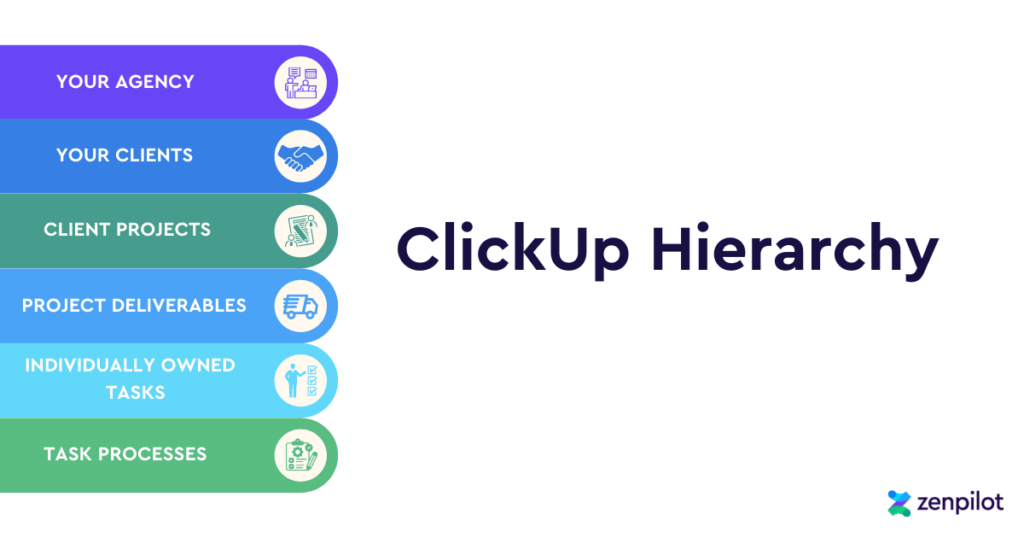
Workspace
The Workspace is the highest level in ClickUp. It represents your entire business. You’ll name it after your company, and everything else lives inside it. Most agencies only need one Workspace.
Spaces
Spaces sit directly below your Workspace. Think of these as departments, teams, or major areas of focus within your business. Each Space can have its own settings, statuses, custom fields, and ClickApps.
Folders
Folders live inside Spaces and are used to group related Lists and Tasks. They give you a middle layer of organization between the broad category of a Space and the detailed work inside a List.
Lists
Lists are where work actually lives. Every parent task, subtask, and checklist sits inside a List. This is where your team spends most of their time - creating, updating, and completing tasks.
Parent Tasks and Subtasks
Tasks represent individual actions or deliverables. Parent tasks are typically high-level items - think of them as the “what” (a blog post, a website redesign, a campaign launch). Subtasks break that work into specific steps - the “how” (write draft, review copy, publish).
Checklists
Checklists are built into any task and serve as a safety net. They’re great for quick quality checks or making sure small steps don’t get missed. Checklists are not where you teach someone a process - they’re where you confirm a process was followed.
The ClickUp Hierarchy Every Agency Needs
After 3,100+ implementations and hundreds of thousands of hours working inside ClickUp, we’ve dialed in the hierarchy structure that works best for agencies.
This isn’t theoretical. It’s the same structure we’ve used with marketing agencies, creative firms, development shops, accounting teams, and consulting groups.
“I’m glad we built out our hierarchy first, because I can tell we’re already set up for success. Before, I would have just created Spaces and started working. Now I understand why structure matters.”
— Rebecca Nash, Beam Content
Whether you’re brand new to ClickUp or you’ve been using it for years and want to get more value out of it, this framework will help.
Don’t Overlook the Significance of Your Hierarchy
Here’s the thing most people miss: your hierarchy directly impacts what you can report on.
Dashboards, views, and reports in ClickUp are all limited by how your workspace is structured. If your hierarchy is flat or disorganized, you won’t be able to pull the insights you need - things like profitability by client, utilization by team, or time spent in each department.
If you’re just getting started, this guide will help you build a clean foundation from day one.
If you’ve been using ClickUp for a while and feel like you’re not getting the visibility you need, your hierarchy is likely the root cause. Redesigning it now will unlock the reporting and dashboards you’ve been missing.
Designing Your ClickUp Hierarchy
Every agency - regardless of size, vertical, or service offering - has three core areas of the business:
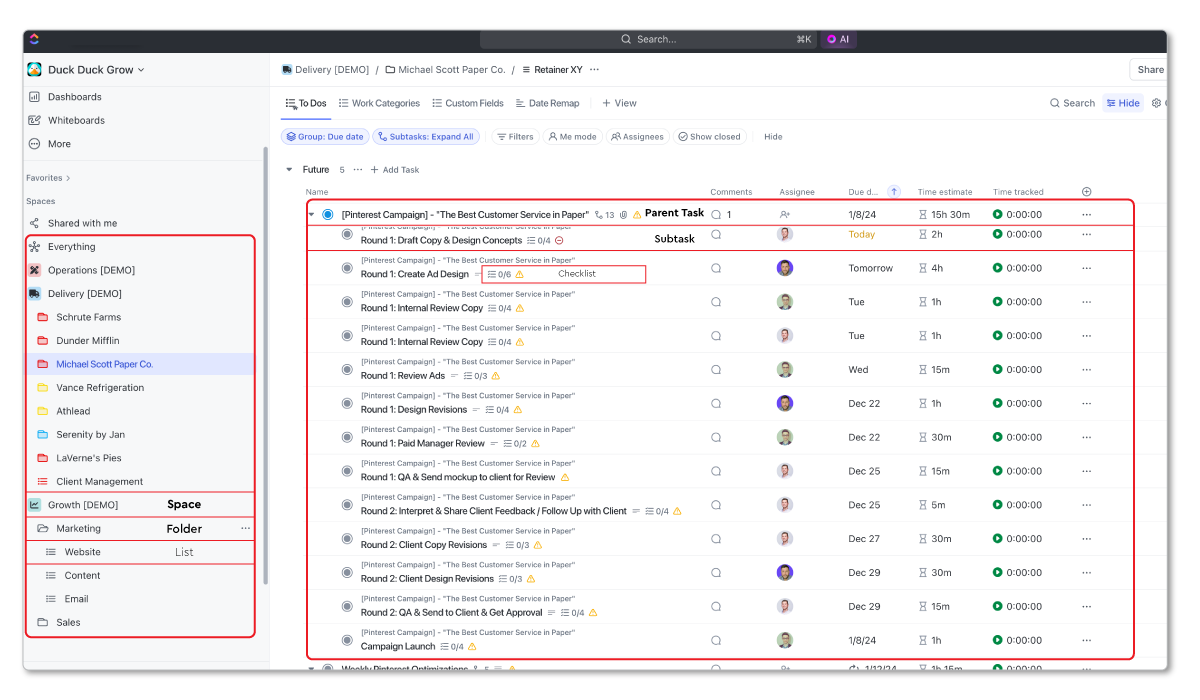
Space #1: Growth
Growth is where you make your promise. This Space houses everything related to marketing, sales, and partnerships. Lead generation campaigns, sales pipeline management, partner outreach - all of it lives here.
Think of it as the front end of your agency. The work that brings new clients in the door.
Space #2: Delivery
Delivery is where you keep your promise. This is the biggest Space for most agencies. It’s where all client work lives - the projects, retainers, campaigns, and deliverables your team produces every day.
We’ll cover the detailed structure of the Delivery Space (Folders, Lists, Tasks) in the section below, because getting this right is critical.
Space #3: Operations
Operations is where you run the business. HR, finance, legal, IT, company meetings, internal initiatives - all of it goes here.
Operations tends to be the biggest junk drawer in any business. Every agency has operational work, but it’s rarely organized well. Giving it a dedicated Space forces you to treat it with the same discipline you bring to client work.
Pro Tip: Treat your agency like your best client. If you wouldn’t let a client’s work live in a messy, unorganized corner of ClickUp, don’t let your own internal work live there either.
Why This Three-Space Structure Matters
With Growth, Delivery, and Operations separated, you can answer high-level strategic questions at a glance:
- How much time and money are we spending on growth vs. delivery vs. operations?
- Are we over-investing in one area at the expense of another?
- Where are we most efficient, and where are we leaking time?
This structure gives leadership the bird’s-eye view they need to make smart decisions - and gives individual contributors a clear picture of where their work fits.
Additional Spaces
Beyond the three core Spaces, we recommend two more for most agencies:
Process Library
The Process Library is where you create and store your process template source files. This isn’t where live work happens - it’s your master collection of templates that get deployed into the Delivery, Growth, or Operations Spaces when needed.
Organize the Process Library by work categories. If you’re a marketing agency, you might have folders for SEO processes, content processes, paid media processes, and so on.
The key benefit: when you need to update a process, you update it in one place. Every future deployment uses the latest version.
Related: How to 10x Productivity With ClickUp Templates
CRM
We recommend a dedicated CRM Space for your delivery team to track client relationships. This isn’t meant to replace your sales CRM (like HubSpot or Salesforce). It’s a lightweight layer that helps your account managers and project managers stay on top of:
- Weekly client updates
- Client health and satisfaction
- Project phases and milestones
- Contract status and renewal dates
Having this information in ClickUp - right next to the work being delivered - makes it easy for your team to stay proactive about client relationships instead of reactive.
Related: How to Build a Client Tracker in ClickUp
Structuring Folders, Lists, and Tasks
Now let’s zoom into the Delivery Space, because this is where most agencies need the most guidance.
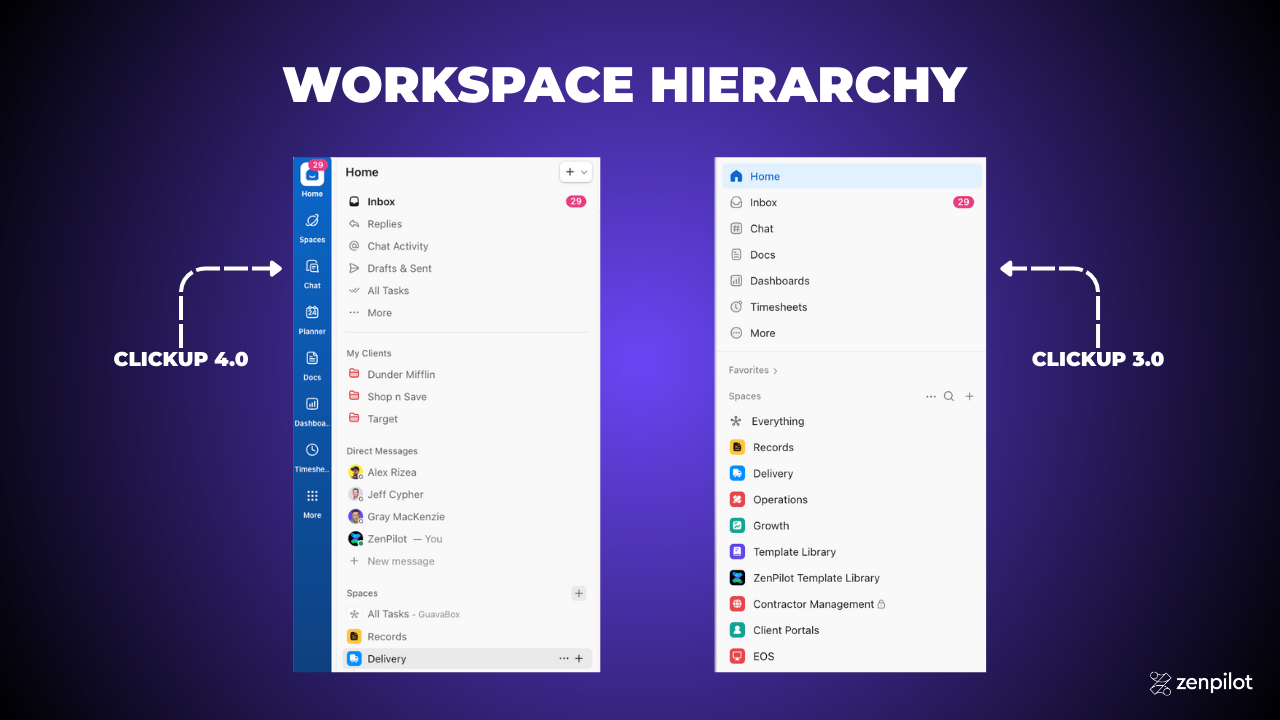
Folders: One Per Client
Each client gets their own Folder inside the Delivery Space. This is the single most important structural decision in your Delivery Space.
Do not create a separate Space for each client. This is one of the most common mistakes we see. When every client gets their own Space, you lose the ability to report across all clients in a unified way. Spaces have different settings, statuses, and custom fields - which makes cross-client visibility a nightmare.
Keep all clients as Folders within the Delivery Space, and you’ll maintain consistent settings while still being able to filter and report by client.
Lists: Organized by Service Lines
Inside each client Folder, create Lists based on your service lines, project phases, or retainer categories.
For example, a marketing agency might have Lists like:
- SEO
- Content
- Paid Media
- Social Media
- Web Development
Or if you work in project phases:
- Discovery
- Strategy
- Execution
- Optimization
The key is consistency. Every client Folder should follow the same List structure so your team always knows where to find and create work.
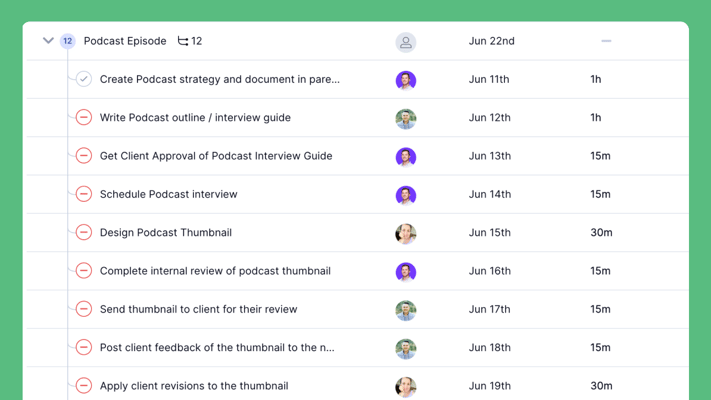
Parent Tasks: Deliverables and Milestones
Parent tasks represent the deliverables or milestones within each List. Think of these as nouns - a blog post, a landing page, a monthly report, an ad campaign.
Parent tasks are often non-actionable on their own. You wouldn’t assign “Blog Post” to someone and expect them to know exactly what to do. Instead, the parent task serves as a container for the subtasks that break the work into clear steps.
Subtasks: Workflow Steps
Subtasks are where the actual work gets done. Each subtask represents a step in the workflow - write draft, review copy, design graphics, approve final, publish.
Subtasks are actionable. They should be clear enough that the person assigned knows exactly what they need to do. Subtasks also pass work between team members. When the writer finishes the draft, the subtask for review gets assigned to the editor.
This is the structure that makes ClickUp’s Workload view actually useful - because every subtask has a single assignee, a time estimate, and a due date.
Related: The Best Way to Structure Work in ClickUp
Checklists: The Safety Net
Checklists live inside tasks (or subtasks) and serve as a quick quality check. They’re great for things like:
- Did you add alt text to all images?
- Did you check all links?
- Did you run the spell checker?
Checklists are not for teaching someone a process. If a team member needs to learn how to do something, that instruction belongs in a task description, a linked SOP, or a training video. Checklists are for experienced team members to confirm they didn’t miss a step.
Reviewing Your Hierarchy
Let’s put it all together. Here’s what your complete ClickUp hierarchy should look like:
Workspace (Your Agency Name)
-
Growth (Space)
- Marketing (Folder)
- Sales (Folder)
- Partnerships (Folder)
-
Delivery (Space)
- Dunder Mifflin (Folder - Client Name)
- Retainer (List)
- Blog Post (Parent Task)
- Write Draft (Subtask)
- Review Copy (Subtask)
- Publish (Subtask)
- Blog Post (Parent Task)
- Website Redesign (List)
- Retainer (List)
- Acme Corp (Folder - Client Name)
- SEO (List)
- Content (List)
- Dunder Mifflin (Folder - Client Name)
-
Operations (Space)
- HR (Folder)
- Finance (Folder)
- Legal (Folder)
-
Process Library (Space)
- Delivery Processes (Folder)
- Growth Processes (Folder)
- Operations Processes (Folder)
-
CRM (Space)
- Deals (List)
- Companies (List)
- Contacts (List)
This structure scales whether you have 5 clients or 500. It keeps everything organized, makes reporting possible, and gives every team member clarity on where work lives.
Take the Next Step
Now that you understand the ideal ClickUp hierarchy, it’s time to evaluate your own structure.
If you’re starting fresh, use this guide as your blueprint and build it right from day one.
If you’ve been in ClickUp for a while, compare your current setup against this framework. Where are the gaps? Where is your hierarchy making it harder to get the visibility you need?
Keep in mind: no project management tool can build your processes for you or instill the habits your team needs to follow them. The tool is the foundation - but processes and people are what make it work. That’s what we call the 1-3-5 Agency Formula: one tool, three areas, five habits.
Here are three steps to keep moving forward:
Step 1: Take the Agency PM Health Benchmark. Get a clear picture of where your agency stands today. Take the benchmark here.
Step 2: Read the ClickUp for Agencies Guide. Our complete guide walks through everything from hierarchy to templates to rollout. Download the guide.
Step 3: Schedule a call. If you want expert help from ClickUp’s #1 Solutions Partner, book a call with our team. We’ve helped over 3,100 clients build the systems that run their agencies.