
ClickUp Time Tracking Best Practices for Agencies
Having clear visibility into how time is being spent across projects, clients, and other initiatives is critical. Accurate time tracking helps you analyze profitability, team productivity, workload allocation, project throughput, and much more.
Without proper time tracking, you’re flying blind and can’t make informed data-driven decisions about your business.
Thankfully, amongst countless other things, ClickUp provides a powerful solution for tracking time.
Your team may currently be tracking time in a tool like Harvest, Everhour, or Toggl (yes, these tools have their benefits) but if your team is already leveraging ClickUp, you’ll be able to cut some software costs and save yourself some cash.
However, though ClickUp provides a powerful time tracking solution, to actually obtain insightful data, three elements are necessary:
- Your ClickUp Workspace needs to be set up properly.
- Your team needs to track their time consistently and build healthy habits.
- You need to build dashboards and reports to capture and make sense of your time tracking data.
In this article, I’ll be guiding you through the process to powerful time tracking and reporting for your business. Let’s dive in!
Step 1: Building Your ClickUp Hierarchy for Better Time Data
Before we even begin talking about how to track time in ClickUp and all its bells and whistles, we need to discuss your ClickUp Hierarchy first.
Why?
Your time tracking data could be meaningless with a bad Hierarchy.
If you want meaningful time data for billing, client projects, department breakdowns, and more, you need to intentionally structure your ClickUp Hierarchy.
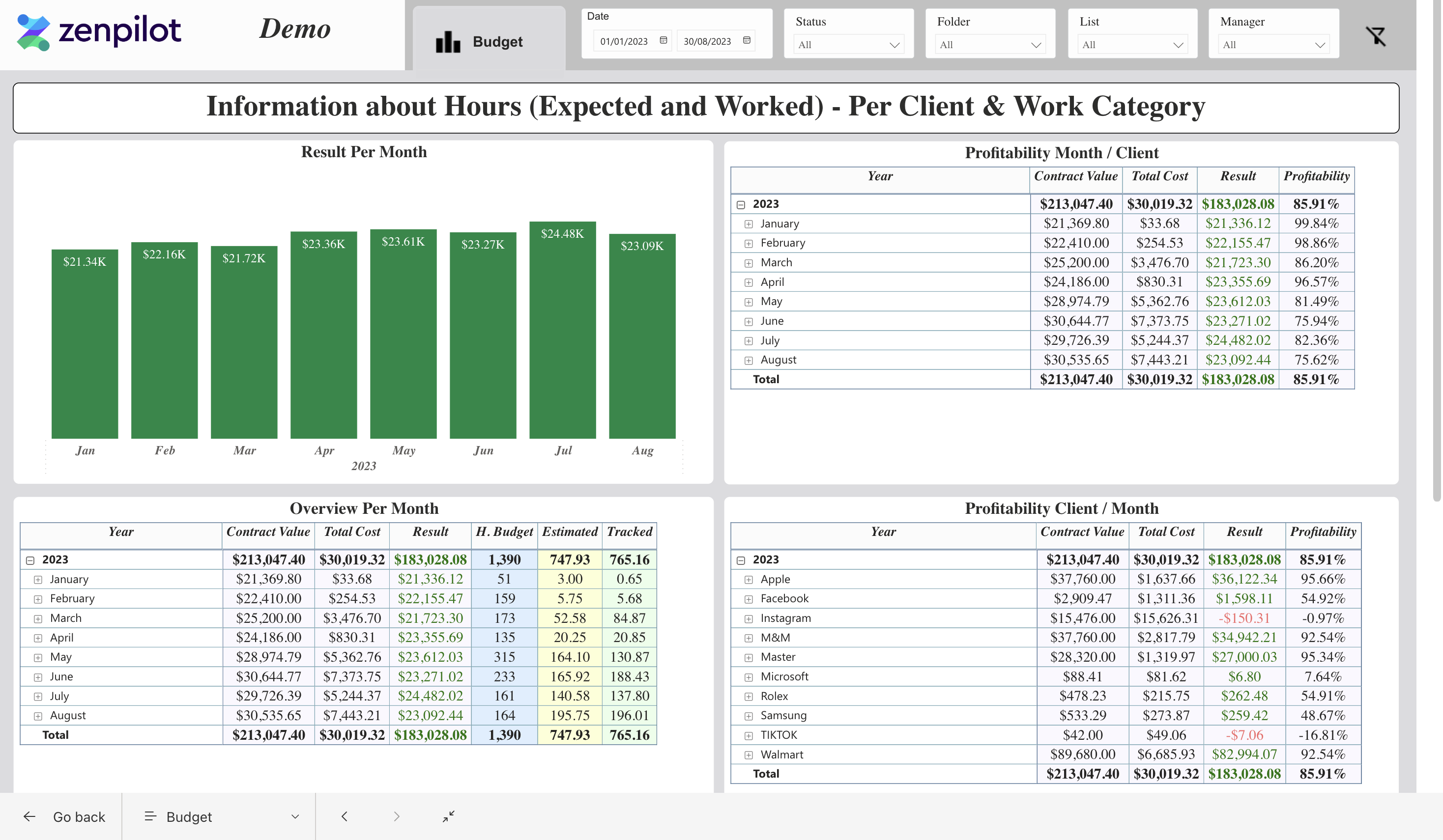
The future state could look like this - crystal clear visibility in to profitability and utilization.
In ClickUp, you’ll have a Workspace, Spaces, Folders, Lists, Parent Tasks, Subtasks, and *Checklists, and *you’ll track time at either the Parent Task and Subtask level.
These Tasks will live in List, and that List will live in a *Folder *(but note that Lists do not need to live in Folders), and that Folder will live in a Space.
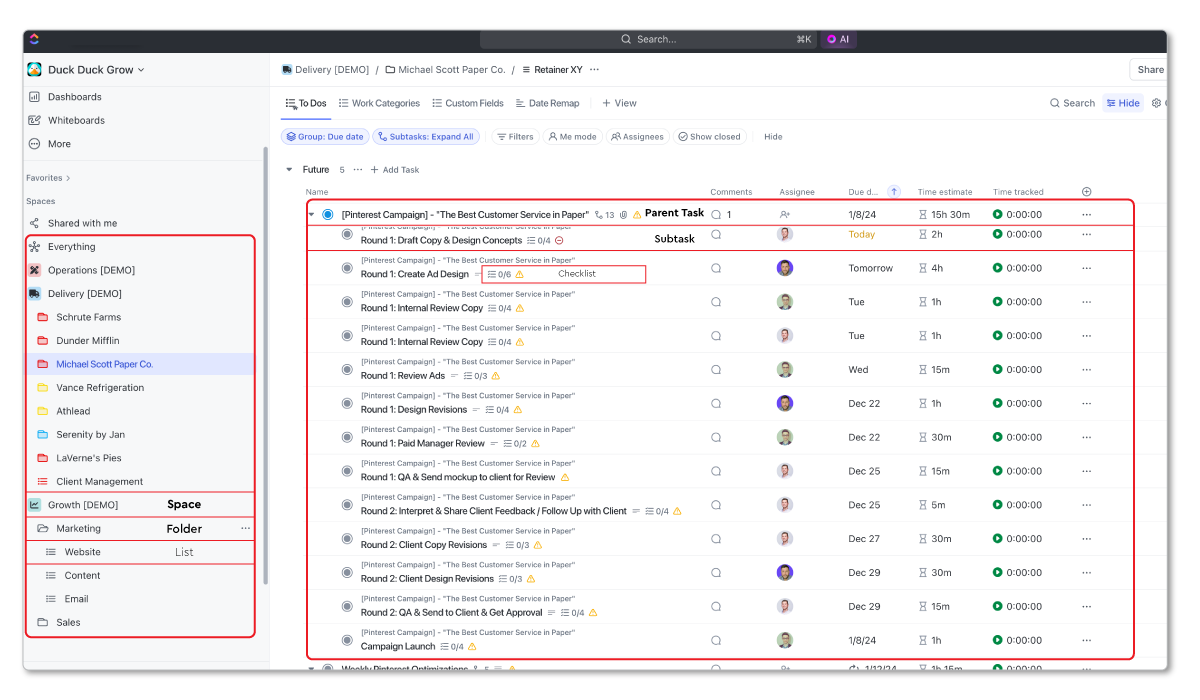
The time that’s tracked on these Tasks will be associated with the List, Folder, and Space in which they live. This is why it’s extremely important to make sure your Hierarchy is built in a way that gives you useful data to help you make decisions.
If you have a bunch of random Spaces, Folders, and Lists, with no strategic direction, your time data will reflect that, and you’ll probably get a bit frustrated…
Don’t always blame the tech. Sometimes it’s a strategy problem. 🙂
Example Hierarchy for Agencies
For agencies (or anyone servicing clients), here is an example high-level Hierarchy that’ll provide great reporting:
- **Space: **Growth
**Folder: **Sales
- **Folder: **Marketing
**List: **Website
-
**List: **Content
-
**Space: **Delivery
**Folder: **Client A
**List: **Retainer XYZ
- **List: **Website Project
**Folder: **Client B
- **List: **Retainer ABC
**Folder: **Client C
-
**List: **Retainer DEF
-
**List: **HubSpot Implementation
-
**Space: **Operations
**Folder: **HR
- **Folder: **Finance
- **Folder: **General & Admin
With this structure, time tracked on Tasks in the “Retainer XYZ” List will flow up to the “Client A” Folder and “Delivery” *Space, *time tracked on Tasks in the “Retainer ABC” *List *will flow up to the *“Client B” Folder and “Delivery” Space, *and so on…
This will then provide visibility into time across clients, contracts, projects, departments, and more.
Related: The Best ClickUp Hierarchy
BONUS
Download the Complete ClickUp for Agencies Guide FREE
The 47-page guide includes graphics, checklists, and links to how-to videos so you can actionize your ClickUp plan.

ClickUp Hierarchy Best Practices
In summary, your Hierarchy is more important than you may have originally thought.
Go in with a strategy before you implement ClickUp. You want to have a good grasp on your Hierarchy design before you start building everything in ClickUp.
Here are a few Hierarchy recommendations and thoughts:
- Your Workspace is easy. I’d recommend you only have one ClickUp Workspace to keep things simple.
- Your Spaces should be used to represent the main teams or high-level departments across your organization.
- Within each Space, Folders should represent smaller departments within those larger teams (yes, this could be slightly changed based on how your team works or needs to track work).
- Your Lists should then be used to represent categories of work. This could be general service lines or be grouped by campaigns (for those internal marketing folks reading this article).
Always be thinking about visibility when you design your Hierarchy. What are you hoping to see in the future?
Spending time modeling your Hierarchy will pay dividends in the future. It’s easier to build it right the first time than it is to completely redesign it later.
If you need help with this, book a call with my team. We’ve helped over 3,100 different teams streamline their operations in ClickUp, and our Blueprint process may be a perfect fit for you.
BONUS
Download the Complete “How to Use ClickUp” Guide FREE
Get the complete 56-page guide to learn how ClickUp’s #1 solutions partner uses ClickUp.

Step 2: Turning On ClickUp Time Tracking
After your Hierarchy is designed and you feel good about it, it’s time to actually turn on your time tracking capabilities in ClickUp.
Before you can start tracking time in ClickUp, you need to confirm the Time Tracking ClickApp is enabled. ClickApps add advanced functionality to ClickUp, so you need to turn them on.
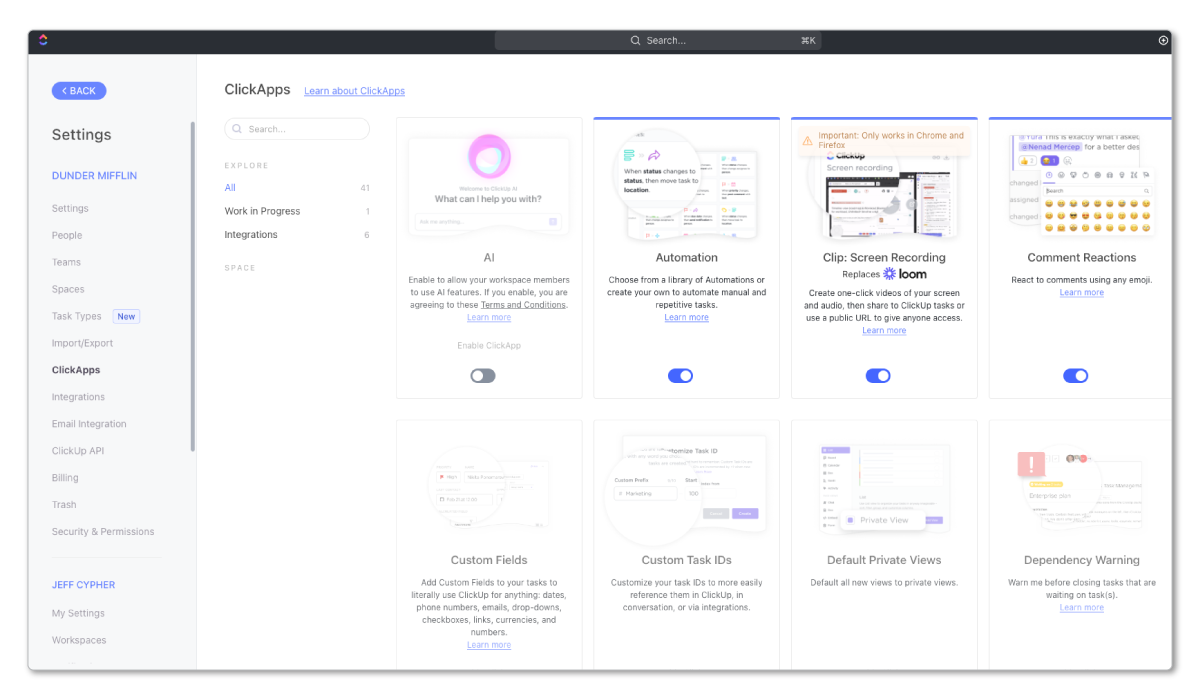
Here’s how to enable the Time Tracking ClickApp:
- Navigate to your Quick Actions Menu in the top right corner and select “ClickApps” at the bottom.
- In the search bar, type in “Time Tracking”.
- Toggle this ClickApp on for all of your ClickUp Spaces.
- I’d also recommend toggling on the Time Tracking Rollup ClickApp.
- Plus, you can turn on the* Time Estimates and Time Estimates Rollup ClickApps.*
With your Time Tracking ClickApp enabled, the time tracking functionality will now be available across your ClickUp Workspace.
Now, let’s look at where time can be tracked in ClickUp, and let me offer you a few tips to help get your team tracking time consistently.
Step 3: How and Where to Track Time in ClickUp
It’s important that your team actually has Tasks that they need to work on in ClickUp. You can’t track time without Tasks in ClickUp.
To help with this, I recommend you build all of your workflows and processes and save them as ClickUp Templates. This will help significantly with making sure your team has Tasks for them to complete and track time on.
But regardless, there’s three places where your team can track time on their Tasks…
Three Places to Track Time in ClickUp
1) List View
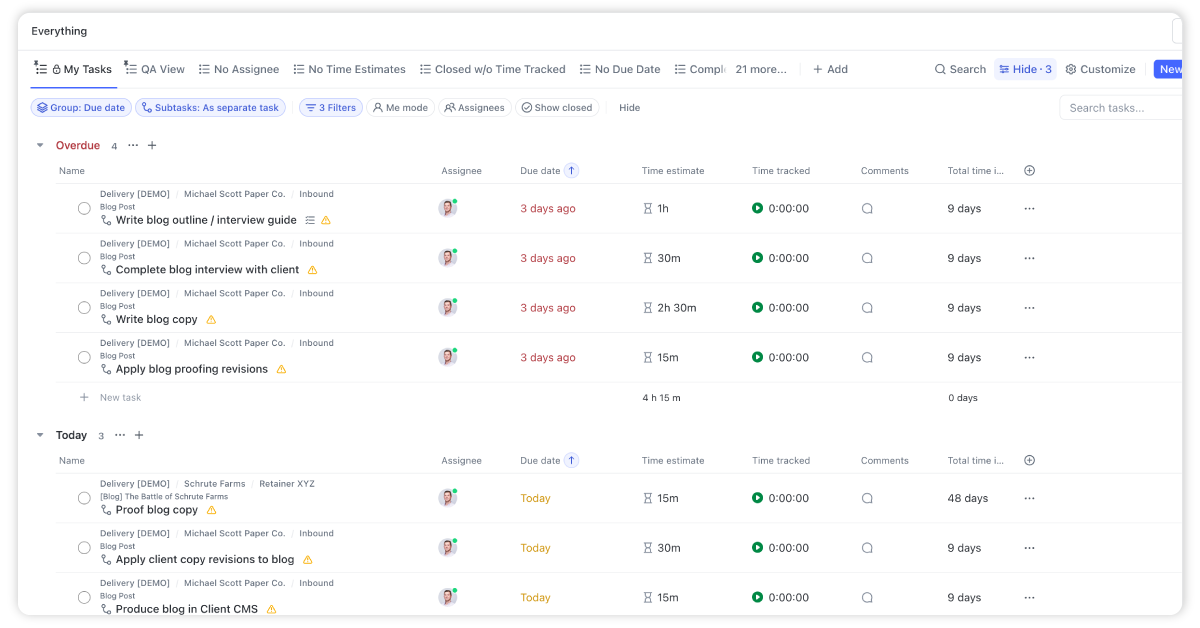
The most efficient way (and where I prefer) to track time is directly within a List View. Simply add a Time tracked column to your View, and you can start tracking time directly on each Task.
To make it easy for everyone, we recommend you create a “My Tasks” *View. This ClickUp View is built at the Everything *level and will be where everyone lives on a day-to-day basis. This View will show everyone all of their Tasks.You can see your Tasks, get the context you need to complete them, track time on them, and complete them, all in this one View. Talk about simplicity!
Here’s your instructions on building a “My Tasks” View in ClickUp.
2) Task Details
This isn’t that much different than tracking time in the Task View, but it does take one extra click (which I realize is only milliseconds in productivity loss).
This option is fine and I do it often, but sometimes I like to just track time directly in the Task View.
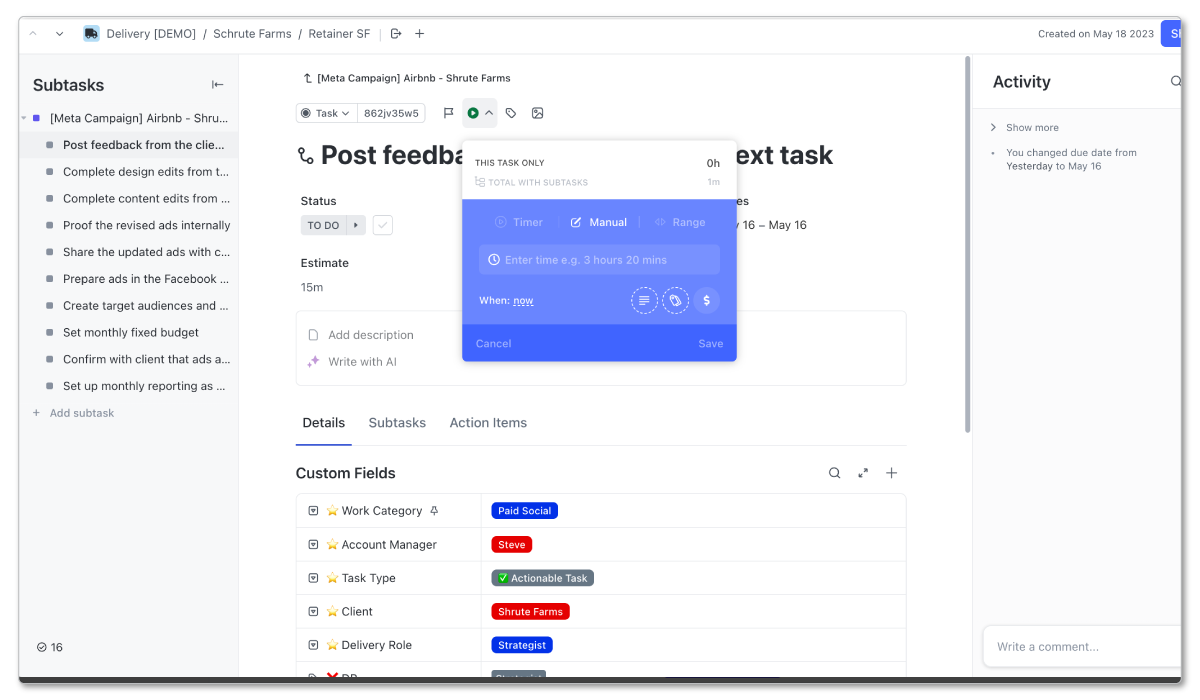
When you click in to a Task,* you’ll see a little green play button directly above the Task name. *If you hover over it it’ll say “start timer”. Click on the “start timer” and begin tracking time.
3) Quick Action Toolbar
Lastly, you can also leverage the Quick Actions Toolbar.
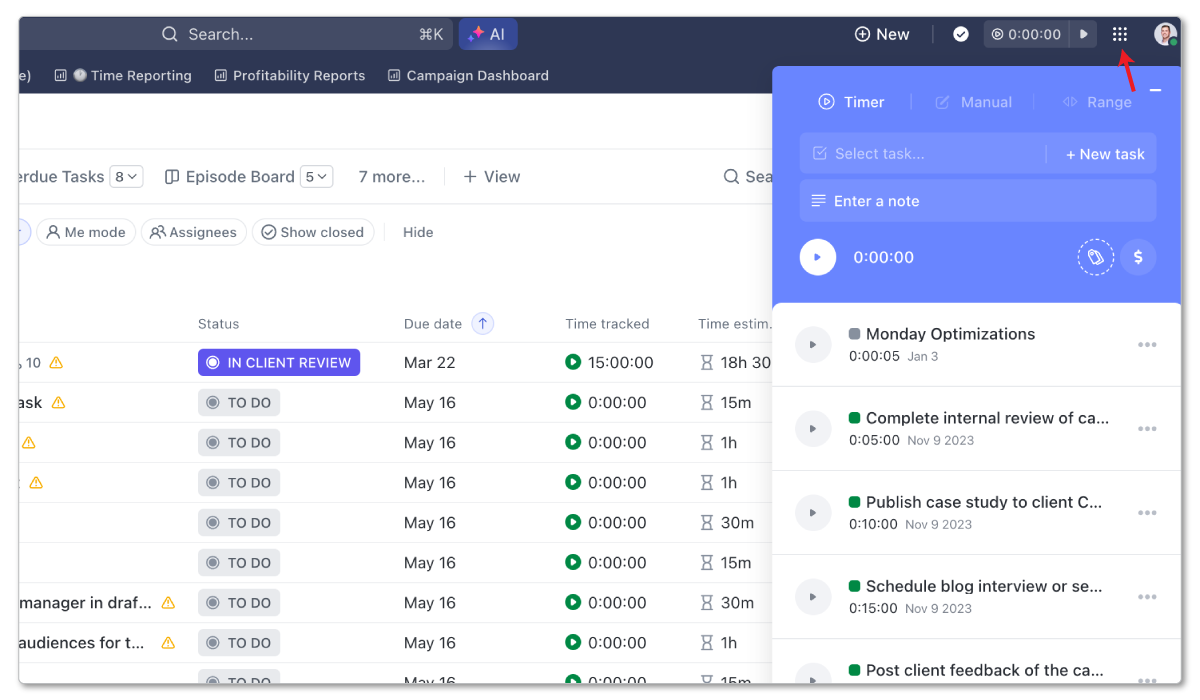
Navigate to your Quick Actions Toolbar (represented by 9 dots in the right corner of your screen) and pin the Track Time option. You can now click on this wherever you are in ClickUp.
This may be better for some, but you will have to search for the Task you’re looking to track time on. That’s why I find it much easier to just work out of your “My Tasks” View.
Three ClickUp Time Tracking Methods
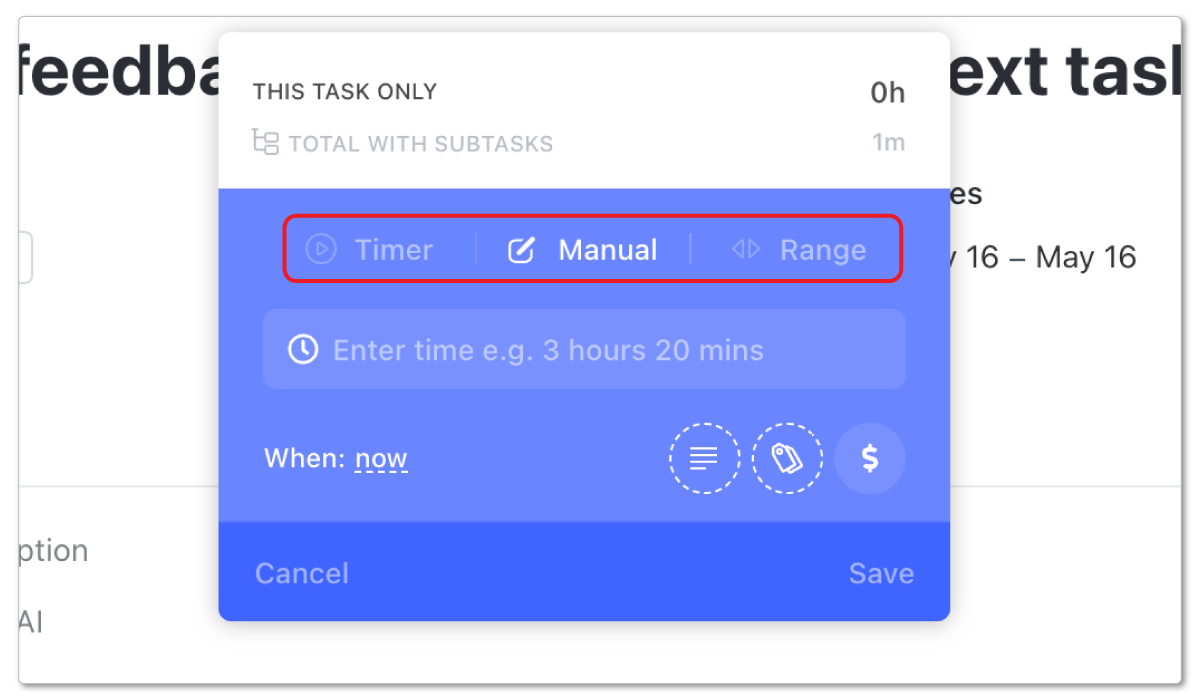
In addition to the three different places to track time, there’s also three different methods of tracking time - timer, manual, or range.
Timer: The timer provides the most accurate time tracking data. You can start a timer when you begin working on a task, and stop it when you stop. You’ll get data down to the second instead of just the minute, but you obviously have to be good about stopping your timer when you’ve completed a Task.
Manual: You can also type in your time manually. If you forgot to start a timer, were looking at the clock, or you tracked time on a different device, you can type in the duration - like “20 minutes”- when you’ve completed the task.
Time Range: Similar to manual, you can also choose to enter a start and end time like 9:45am to 10:15am and ClickUp will calculate the duration.
Recommendation: Use Timer + Manual Time Tracker as Needed
While all three methods have their place, for the most accurate time data, I recommend you encourage the use of timers whenever possible and leverage manual entry if gaps need to be filled. This will provide you with “down to the second” time data for the most accurate measure of where time went.
This all depends on what your business needs, though. If you don’t need that granular level of data, manual entry or the range will work just fine.
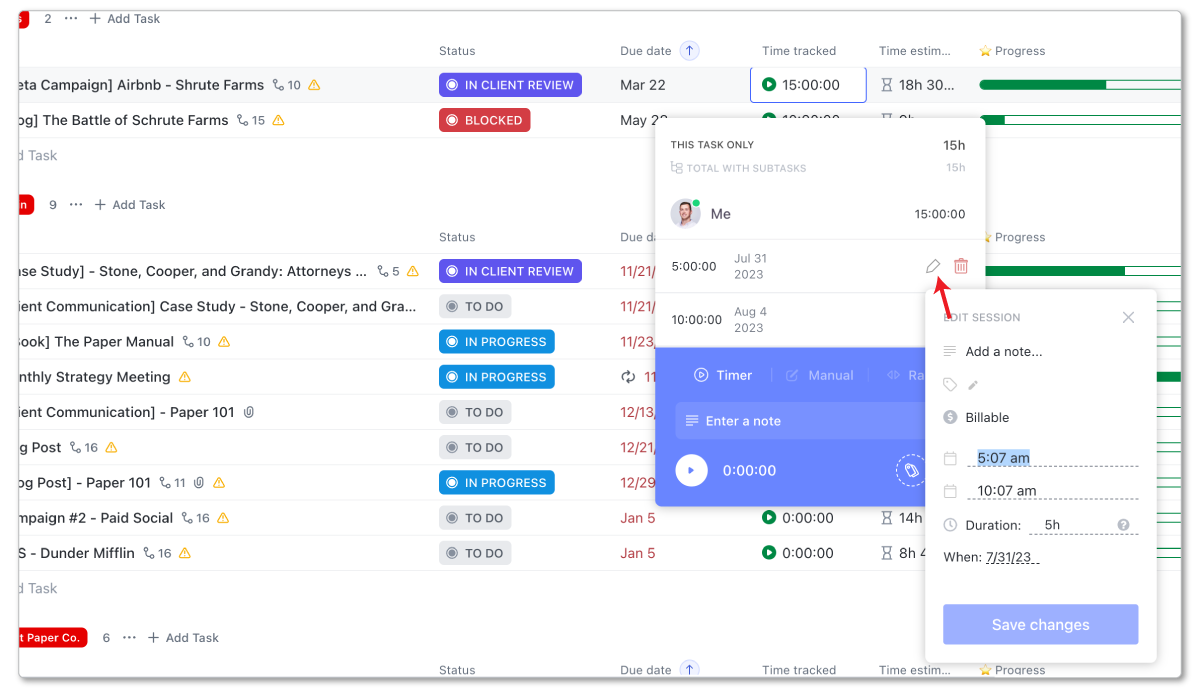
And lastly, if someone forgets to stop their timer (which happens frequently), or accidentally types in an inaccurate time entry, you can always edit time entries in ClickUp. To do this, click on your time entry, select the “pencil” icon and edit the entry. Follow the graphic below.
Step 4: Encouraging Healthy Time Tracking Habits
When tracking time in ClickUp, the important component is the *Hierarchy. *The Hierarchy will put help categorize time entries.
But a close second important component to tracking time is your team’s time tracking habits. This can be a struggle for a lot of teams when they start to track time. If your team hasn’t done if before, there’s a chance that it’ll take some time before they fully adopt your new ask of them.
Here’s a few tips to get your team tracking time in ClickUp.
1. Make Time Tracking Easy
Time tracking doesn’t have to be difficult.
It’s only difficult when your team has to cross over multiple platforms and systems. The more friction added to the time tracking process, the more likely it is that your team wont track their time (duh!).
The beauty of tracking time in ClickUp is that it can be the one tool that your team uses to see their work, complete their work, communicate with the team, and track their time. This is why we recommend you have a “My Tasks” View for everyone in your ClickUp Workspace.
This View will house their Tasks and be where they track their time. If they live in this View and can do almost everything there, you’re minimizing the friction when it comes to tracking time.
Yes, it’ll take some time to build the habit, but this is a great start.
2. Set Goals and Hold the Team Accountable
Secondly, before you tell the team to start tracking time, set some goals and expectations. Clarity is always kindness.
Hundreds of teams we’ve worked with set weekly time tracked goals.
You can start with 60% of time being tracked in week 1, 70% of time being tracked in week 2, 80% of time being tracked in week 3, and so on…
Most often, billable work is a non-negotiable for tracking time, but you can ease your team in to tracking time on their internal tasks.
Set a goal and hold your team accountable to that goal. Thankfully, you’ll have ClickUp Dashboards (which we’ll dive in to next) to help with this.
3. Reward Good Work
Should you use the carrot or the stick?
Most often, it’s a combination of both, but I’d lean towards the carrot for this one.
As your team starts to track time, I recommend that you reward those who are tracking their time in full. Run competitions and shout out time-tracking winners in a Slack channel. Always encourage and promote healthy habits.
Do this for a quarter or so, but at some point, tracking time just has to be the norm and non-negotiable. You can’t always reward team members for just doing their job.
If someone still can’t seem to track time, have a conversation with them. If they simply don’t want to track their time, they may not be a culture fit.
4. Discuss the Why
It’s always important to tell your team why they need to track their time. Most often, team members who’ve never tracked time before may think of it as a punishment and a way for you to see where they spend every second of their working hours.
But in reality, this is not always the case. Yes, that data can be useful, but you need to explain the “why” behind your request.
Time data is necessary to show you how profitable your business, services, and projects are.
Additionally, time data can help tell you how long tasks take, helping provide better estimates in the future - which is a win for your clients and a win for your team.
Better time estimates lead to a clearer view of workload and capacity, which leads to a team that is utilized properly and not overworked or underworked. Your team will appreciate this.
Step 5: Building ClickUp Time Tracking Dashboards
After you’ve got your ClickUp Hierarchy designed correctly, and your team has actually started to track time inside of ClickUp, you can start building some powerful time tracking Dashboards.
Thankfully, ClickUp provides a variety of customizable Dashboard Cards to view and analyze your time tracking data.
When your Hierarchy is in order and your team is tracking their time well, extracting relevant time data shouldn’t be a problem.
If your team isn’t tracking their time consistently, this most likely isn’t a tech problem, it’s a habit and change management problem.
