
ClickUp vs Monday.com for Agencies: Which Is Better?

For most agencies, ClickUp is the better choice over Monday.com. It has a deeper hierarchy, stronger workload management, and a better template system for repeatable service delivery. Monday.com is easier to use and a solid pick for simpler teams, or teams that want work management and a CRM from one vendor. This comparison is based on 3,100+ clients served by ZenPilot, ClickUp’s highest-rated Solutions Partner on Clutch.
We’ve worked with hundreds of service-based teams (agencies, marketing teams, financial services, professional services departments, etc.), and the question we get asked the most is, “What’s the best project management tool out there?”
We’ve used, tested, and compared a lot of them firsthand. ClickUp and Monday.com are the two that come up most, and both can replace a lot of other SaaS products on their own.

You’re here to figure out which one to buy, so here’s which one I’d pick for your team and why.
For a broader guide on what to evaluate in any project management tool, read how to choose the best project management tool.
Key Takeaways
ClickUp is the better choice for most teams
It wins on hierarchy, views, templates, time tracking, workload management, and pricing.
Monday.com wins on ease of use
Its polished UI and faster onboarding make it a strong pick for teams that prioritize simplicity over depth.
ClickUp is cheaper at scale
A 10-person team pays roughly $170/mo on ClickUp Business vs $190/mo on Monday.com Pro (a $240/year difference), and ClickUp includes more features at the lower price.
Template date remapping is a dealbreaker
ClickUp lets you remap due dates when deploying templates. Monday.com doesn’t. For teams running repeatable workflows, this alone can save hundreds of hours per year.
ClickUp vs Monday.com: Feature Comparison Table
Here’s how ClickUp and Monday.com compare on the features that matter most, rated from our experience with 3,100+ clients:
| Category | ClickUp | Monday.com | Notes |
|---|---|---|---|
| Free version | ⭐⭐⭐⭐ | ⭐⭐ | ClickUp Free offers unlimited tasks and members. Monday.com caps free plans at 2 members. |
| Customer support | ⭐⭐⭐⭐ | ⭐⭐⭐⭐ | Both offer 24/7 support on every plan |
| Knowledge base & training | ⭐⭐⭐⭐ | ⭐⭐⭐⭐ | Both offer training courses + consultants for extra guidance |
| Ease of use | ⭐⭐⭐ | ⭐⭐⭐⭐ | Monday.com is more straightforward and known for its UI |
| Task management | ⭐⭐⭐⭐⭐ | ⭐⭐⭐⭐ | ClickUp offers easier date remapping and bulk editing |
| Time tracking | ⭐⭐⭐⭐⭐ | ⭐⭐⭐ | Monday.com has improved but still limited reporting unless on Pro plan |
| Views | ⭐⭐⭐⭐⭐ | ⭐⭐⭐⭐ | ClickUp views offer more visibility across the hierarchy |
| Templates | ⭐⭐⭐⭐⭐ | ⭐⭐⭐ | ClickUp offers more template levels + date remapping on deploy |
| Document management | ⭐⭐⭐⭐ | ⭐⭐⭐ | ClickUp Docs are easier to store, manage, and format |
| Analytics & reporting | ⭐⭐⭐⭐ | ⭐⭐⭐⭐ | ClickUp has better org-wide reporting, Monday has more dashboard widgets |
| Automations | ⭐⭐⭐⭐⭐ | ⭐⭐⭐⭐⭐ | Both offer powerful automations with extensive triggers and integrations |
| Integrations | ⭐⭐⭐⭐⭐ | ⭐⭐⭐ | ClickUp offers 1,000+ integrations vs Monday’s 200+ |
| Security | ⭐⭐⭐⭐ | ⭐⭐⭐⭐ | Both are secure, especially on enterprise plans |
| Pricing | ⭐⭐⭐⭐⭐ | ⭐⭐⭐ | ClickUp offers more for less |
| Overall | ⭐⭐⭐⭐⭐ | ⭐⭐⭐⭐ | Monday.com is easier to use, but ClickUp is better overall |
- You’re an agency, professional services firm or operations-driven team building your whole operating system, templates and all.
- Leadership needs visibility and reporting across clients and departments.
- You run repeatable work and want templates that remap due dates on deploy.
- You’ll invest in a proper implementation. It has the steepest learning curve.
- Ease of use matters more than depth. It has the best user experience of any project management tool.
- Your team isn’t very technical and needs to ramp up quickly.
- You want work management and a CRM from one vendor.
- You don’t need much high-level visibility across projects.
What Is ClickUp?
ClickUp is an all-in-one work management platform that combines project management, docs, time tracking, dashboards, and goals in a single Workspace. It’s built around a flexible hierarchy (Workspace > Spaces > Folders > Lists > Tasks) that lets teams organize and view work at any level. That’s why it fits agencies, professional services firms, and operations-focused teams managing multiple clients, departments, and workflows in one place.
What Is Monday.com?
Monday.com is a visual work management platform that helps teams plan, track, and deliver projects using customizable boards, automations, and integrations. It sells separate products for work management, CRM, and marketing, each with a polished UI and easy onboarding. It’s a strong choice for teams that value simplicity and a quick ramp-up over deep customization.
ClickUp or Monday.com: The Short Answer
Both systems go well beyond basic project management. If you’re looking for one app to replace them all (as ClickUp’s slogan says), these are the two tools that come closest. Whether it’s a complete CRM or running EOS™, both have you covered.
Here’s our experience with each in a couple of sentences:
ClickUp is the most well-rounded and versatile tool on the market for agencies, professional services firms, and operations-driven teams. If you’re trying to build your entire operating system (templates and all), it’s an amazing choice. It also comes with the steepest learning curve. Without a proper implementation strategy, there’s a good chance your team gives up before you see what the platform can do.
Monday.com has the best user experience of any project management system. With its UI and well-packaged out-of-the-box solutions (like the CRM product), it will serve a “not so technologically advanced” team well. If you want one system for both work management and a CRM, Monday.com is perfect. It can be a bit pricier for smaller teams, and it lacks a lot of the high-level visibility ClickUp offers.
If you asked for my quick recommendation for agencies, I’d say ClickUp.
Your decision depends on what matters most to you. But 99% of agencies want a system that helps their team do better work faster and gives leadership the visibility and reporting to make decisions. In my experience, ClickUp does both.
Before You Switch: Why Are You Looking to Move On?
While researching what people say about both platforms, we came across this ClickUp vs. Monday.com reddit thread. Some teams in it enjoy ClickUp, some Monday.com, and there are even a few Asana lovers.
One commenter, -Macho-Man-, asks a very wise question: “Why are you guys actually looking to move on?”

Later in his comment, he explains that almost every place he’s worked that scrapped an existing system ignored the underlying issues: bad processes and no governance.
After helping 3,100+ clients implement project management software, I’d agree. Both ClickUp and Monday.com are great, and most businesses can operate well on either one. So whether you’re on one and wondering if the other is better, or you’re on something else entirely, ask yourself that question first.
This is a huge part of our 1-3-5 formula. The gold-standard agencies have built a mix of:
- Technical Excellence (the tools)
- Procedural Excellence (the processes)
- Behavioral Excellence (the habits)
The most souped-up, expensive tech stack in the world can’t overcome bad process and bad habits. And great processes followed haphazardly, or great habits with poor processes and tooling, produce inconsistent outcomes.
I’m still going to help you decide between ClickUp and Monday.com. Just read the rest knowing that tech is one part of the formula.
Agency Project Management Benchmark
See how your operations stack up against 3,100+ other agencies. Takes 3 minutes.
Take the Assessment →Hierarchy: ClickUp vs Monday.com
In my opinion, the hierarchy is one of the most important parts of a project management system. It guides everything else in the platform: views, task organization, time tracking, reporting, etc.
Agencies need a hierarchy that organizes work by client, department, work category, and billable vs. non-billable work. That’s what gives you accurate reporting, invoicing, and visibility.
The hierarchy also has to work with views. Say you’re the director of client services and you want a bird’s-eye view of your team’s work and all client projects. Most systems let you bucket client work and projects into “folders” for tracking, reporting, and invoicing. Not every system lets you zoom out through the hierarchy and see all of it in one place.
This is a big reason teams move to ClickUp.
The hierarchies are similar, but ClickUp’s pairs better with views
ClickUp designed its hierarchy so you can organize and assign work, then zoom out to see all of it in one place (and filter down with custom fields). That’s perfect for leaders, directors, or managers who need to see work across multiple projects, clients, or departments.

ClickUp gives you a Workspace broken down into Spaces, Folders, Lists, parent tasks, and subtasks.
Monday.com gives you an account broken down into workspaces, folders, sub-folders, boards, groups, items, and subitems.
The levels are similar, but they’re named and operate very differently. This is how I’d organize work in both tools:

You can organize work similarly in both tools (by department, by client, and by project). But Monday’s hierarchy doesn’t play with views the way ClickUp’s does, so you’ll struggle to get that bird’s-eye view of all that work.
I’ll award Monday.com some points for its group level. I think it makes a bit more sense than just parent tasks and subtasks. At ZenPilot, our parent tasks are often the names of deliverables (i.e. blog or podcast) or project phases (i.e. design, development, or launch). “Groups” is a better name for that.
For a deeper look at ClickUp’s hierarchy for agencies, watch our walkthrough:
For the full guide, see The Best ClickUp Hierarchy for Agencies.
Winner: ClickUp
Download the Complete “How to Use ClickUp” Guide
The 56-page guide from ClickUp’s #1 Solutions Partner covers everything from hierarchy design to team training.
Get Instant Access →Views: ClickUp vs Monday.com
Views let each person see only the work they need, in the format they prefer: lists, Kanbans, Gantt charts, timelines, or calendars.
In my experience, you need to design your project management system with at least five roles in mind. Each one is looking for different information:
- Individual Contributors: Need to know what’s on their agenda and what to prioritize.
- Account Managers: Need to see how their clients’ projects are progressing, what the results are, and what to discuss at their meetings.
- Project Managers: Need to see team workload, reassign work and remap due dates when necessary, and keep the PM system up to date.
- Leadership: Need visibility into client health, team health, and overall agency health.
- Clients: Need to know what’s happening, what’s completed, and what the results are.

If your individual contributors can see their work but leadership can’t see what’s happening across the business (or even one department), you might as well use spreadsheets.
Both ClickUp and Monday.com have just about any view you’d need: Gantt charts, tables, timelines, calendars, workload views, and Kanban boards. Each one wins a different category.
ClickUp gives better visibility across your organization. Monday.com gives more customization within a view.
If you need a holistic view of progress, workload, or completed work across the organization, ClickUp is the system for you. Its hierarchy is designed to work with views to do exactly that. (More in our article and video on ClickUp’s hierarchy.)
For example, I can create a Space for client work called “Delivery.” Within that Space, I create a Folder for each client where all of their work lives. In those Folders, Lists represent current retainers and projects.
I can create views at the List, Folder, and Space levels (and at the Workspace level). A view on the Delivery Space shows me all the work happening across all my clients, and I can filter it down further.

This is a big pro for ClickUp, and it can’t really be done in Monday.com, or at least not easily.
Monday.com deserves credit for customization, though. For creating a “view of views” (sorry, I don’t have a better name), Monday.com takes the prize.
In Monday.com, you can create a “blank view” and add a bunch of widgets to it. If you want a table next to a chart next to a Gantt view, you can do that. You can also embed data from other sources (i.e., social feeds, Looker Studio, etc.). It’s the perfect way to build a central “mission control” view for a project.

I just wish I could build that view at a folder or workspace level to see multiple projects at once. Yes, I can do this with a dashboard, but a large agency may run into the dashboard limit for boards.
I give the slight edge to ClickUp. Being able to zoom out and see work across the entire company matters more.
Winner: ClickUp
Task Management: ClickUp vs Monday.com
Both tools handle basic task management fine. When I evaluate task management, I look at overall visibility, due date remapping, templates, and the ability to edit multiple tasks at once. ClickUp is better on most of them.
1. Task and Project Visibility
Beyond the views covered above, ClickUp has an AI product called “ClickUp Brain” that writes daily standups for you. If you want to see what your team did yesterday, last week, this week, or today, it’s one click.
ClickUp relaunched the product as Brain 2 in June 2026, and as of October 2026 AI is included in every ClickUp plan with a monthly pool of AI credits. See our hands-on review of ClickUp Brain 2 for pricing, features, and whether it’s worth it.

Pair this with the other views ClickUp has to offer, and managing your team’s tasks gets a lot easier.
2. Remapping Due Dates
Remapping due dates is probably one of the most important features for agencies and professional services teams. If you disagree, your team might deliver every project on time. If so, hats off to you. Please send me a message on LinkedIn and tell me how you’ve done it!
Most agencies have to adjust project timelines because priorities shift or clients take a long time to provide feedback. If your project managers can’t easily remap due dates, you may end up hiring an extra set of hands just to move them (we’re not kidding - we’ve seen this before).
In ClickUp, you have a few ways to do it: the “Remap Subtask Due Dates” ClickApp or remapping due dates in the Gantt view. I can grab a task in the middle of my workflow and remap every task below it. I can even skip the weekends.
In Monday.com, you can follow the same remapping process in the Gantt view, and you can set dependencies to be strict or flexible. This used to be a real edge for Monday.com, but ClickUp closed the gap in June 2026 when it shipped Gantt auto-scheduling. Now dependent tasks (parent tasks included) reschedule automatically when dates shift.

Both platforms remap dates well. ClickUp just offers more options through its ClickApps, and its Gantt auto-scheduling (a 2026 addition) can skip weekends as well.
3. Templates Inside Task Management
If you want consistent, quality tasks in the system (descriptions or links to SOPs, time estimates, custom fields, etc.), you need templates.
The beauty of ClickUp templates is remapping due dates on deployment. This is a huge limitation in Monday at the moment.

For example, say I build my “blog post” or “website redesign” workflow and save it as a template with due dates, time estimates, dependencies, etc. When I deploy it, I choose the parent task due date and all of the subtasks remap with it. That saves hundreds of hours over a year because nobody is manually editing every due date in the workflow.
4. Bulk Editing Multiple Tasks
If you spend most of your day in a PM tool, you know why this matters.
Both ClickUp and Monday.com let you select multiple tasks (items, in Monday’s case) and act on them.
In ClickUp, you can select hundreds of tasks and reassign them, change the due dates, update the statuses, or adjust the fields on them. Not the most exciting example, but if an employee quit with no notice and you needed to reassign their work fast, ClickUp would make that A LOT easier.

With Monday.com, all you can do in bulk is duplicate, move, delete, archive, or use a monday.com marketplace app.

Monday.com and ClickUp are now roughly even on dependency-driven date remapping. ClickUp separates itself on just about everything else.
Winner: ClickUp
Templates: ClickUp vs Monday.com
Templates are one of my favorite features in any project management system. They bring your processes to life. Whatever system you use, if you don’t build your processes and save them as templates in it, you’re making a huge mistake.
Teams like JUICE and Seaworthy Strategy were able to increase productivity by 300% and 400% respectively. A lot of that came from saving their processes as templates in ClickUp. To get started, you can grab our agency client onboarding ClickUp template for free.
Monday.com templates are easier to learn. ClickUp templates do much more.
ClickUp wins by a landslide here. We’ve yet to find a project management system with a better template center. It’s not perfect, but it can’t be beaten.
ClickUp lets you template anything in your Workspace: Spaces, Folders, Lists, views, Docs, tasks, etc.
For example, if you’re onboarding a new client and need a client Folder with the onboarding process already built in, you can save that as a template and deploy it for every new client.
If you build websites, you can save the project as a template and deploy it every time a new website project comes in. Each time, you remap the due dates with one click. You can’t do that in Monday.com.
Remapping due dates when you deploy a ClickUp template is a massive time-saver, and it makes your business much more scalable.
Imagine everything your business does documented in ClickUp with tasks, time estimates, due dates, dependencies, and SOPs, all packaged in a template you can deploy over and over. If you own the business and want to a) take a week of vacation or b) exit or sell someday, this is a step you need to take.
Client Onboarding ClickUp Template
Pre-built client onboarding template based on best practices from our work with over 2,000 agencies. Deploy it in your workspace in one click.
Get the Free Template →The big difference is the types of templates you can save. Monday.com only lets you save a template at two levels in the hierarchy: boards and workspaces. The closest thing I’ve seen to multi-level templates in Monday is a marketplace app, such as Smart Templates. That helps, but it comes with an additional price tag.
And you can’t remap any due dates when you deploy a template in Monday.com. You remap them all manually, which can take a long time.
On free templates, the two platforms are basically even. Each template center has plenty to get you started. A caution, though: each one is set up a bit differently, and if you rely on them too heavily, your team will probably get confused. Build your own templates and keep them consistent.

Winner: ClickUp
Time Tracking: ClickUp vs Monday.com
If you don’t track time, skip this section. If you do, two things matter most:
- Ease of use, so your team actually tracks time consistently and accurately.
- Reporting, so you can see where time went and how profitable projects, clients, and services are.
Both systems make it fairly easy to track time. On reporting, ClickUp knocks Monday.com out of the water.
I won’t tell you ClickUp has the strongest time reporting on the market, but it gets the job done for most teams.
ClickUp dashboards have widgets for time tracked and time estimates. You can see how much time your team spent on a project or client in a given day, week, month, year, etc. You can also get a time report showing how much time each individual tracked and where, which is perfect for managers.

Monday.com doesn’t keep up with that level of detail. You can use dashboards, but you’re limited in the number of boards you can pull data from, which limits your holistic view. You’re also limited to one time tracking widget, which in my opinion doesn’t tell you much beyond how much time your team tracked in a given week.
Monday.com seems to rely heavily on “export to Excel” for analyzing time. Some teams have a spreadsheet whiz who can make that valuable, but most want their time software to do it for them, or at least give them some charts.

Both tools integrate with other time tracking tools. If you’re a Harvest, Clockify, Toggl, etc., user, you can integrate one of those to get its advanced reporting and still track from your project management system.
Not all of these integrations are created equal. And if you’re trying to cut costs, one system that handles both task management and time tracking helps.
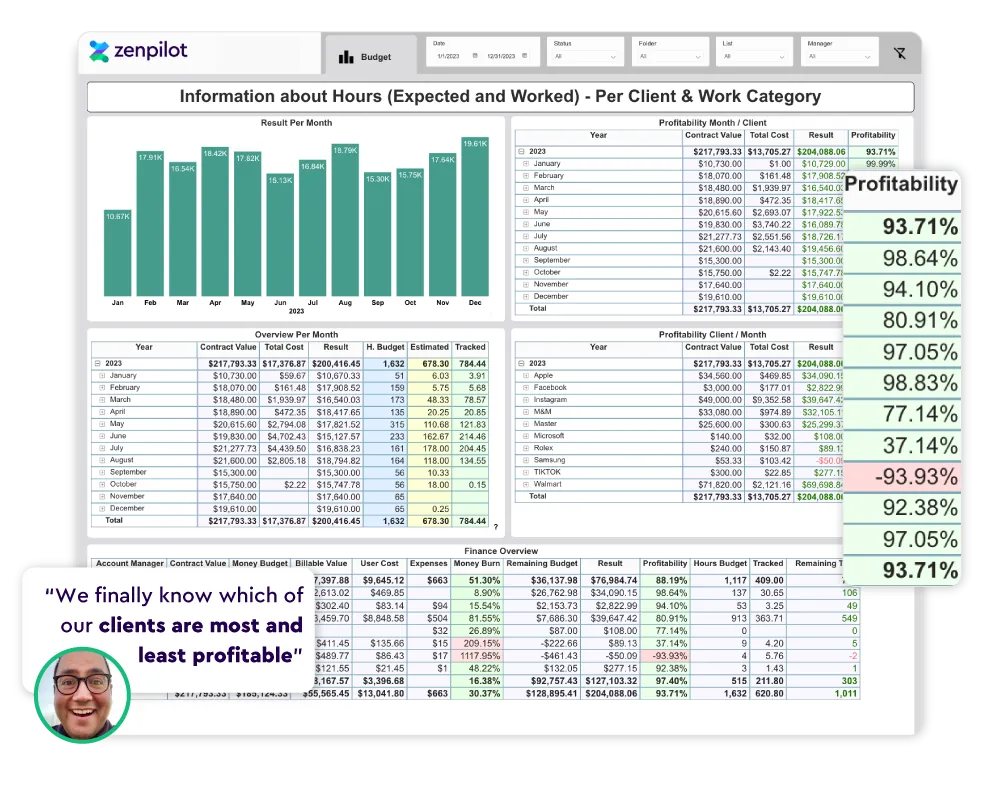
In my opinion, ClickUp wins this category by a long shot. The gap widened in May 2026, when ClickUp shipped a major time tracking overhaul in version 4.04, including a new Time Reporting Dashboard. And if you track time in ClickUp, you can use our profitability reports. We built the profitability layer that native reporting still doesn’t cover.
Winner: ClickUp
Resource Management and Workload: ClickUp vs Monday.com
Resource management is hard to judge, mainly because most teams expect their project management system to give them a crystal clear view of workload right away. It won’t. An accurate workload view takes time and effort to set up.
Both ClickUp and Monday.com have a workload view. If resource management is a big part of your decision, read our article on building an accurate workload view.
Workload Visibility Training
Free guide + 30-minute training video on the 6-step process for building accurate workload and capacity views in ClickUp.
Get the Free Training →You need four ingredients: a workload view, assignees on tasks, due dates on tasks, and time estimates on tasks. The workload view is useless unless every task in the system has all three.
My pick is ClickUp.

First, Monday is (kind of) missing one of the main ingredients: time estimates. It has them, but they’re not as intuitive as ClickUp’s.
Monday.com has a number column you can add to tasks to serve as the time estimate. The problem is that it can’t estimate in minutes like ClickUp can. You shouldn’t have to type “1.25 hrs” all the time. This is a massive downside. Hopefully they add an out-of-the-box time estimates column at some point, but as of now, it’s not there.
Second, hierarchy matters again. In ClickUp, you can create a workload view at the highest level of your hierarchy, the Workspace. That means you can manage resources across the whole company in one place, then filter down to just the team you manage.
In Monday.com, the hierarchy limits how much workload you can see across the organization. You can use dashboards and blank views with widgets, but you’ll run into the board limitations again.
Winner: ClickUp
Ease of Use: Monday.com vs ClickUp
User experience is extremely important, but I think many people put too much weight on it. From what we’ve seen, most project management tools have steep learning curves. If they don’t, they’re probably not very advanced systems.
Monday.com is easier to use and has the better UI
ClickUp probably has the steepest learning curve of any project management platform on the market. It’s extremely customizable and has seemingly endless features (plus weekly updates that keep you on your toes), but most users give up before they even begin. That frustration is probably one of the main reasons people switch platforms (aside from buggy behavior, which has since been massively improved with the 4.0 update).
Monday.com has a learning curve too, but it’s not as steep. It’s not nearly as customizable as ClickUp, which is a pro for user experience. Most new users love the modern layout. It also has some cool llamas that’ll dance for you when you hit a goal, but I really don’t think that should pull much weight in your decision…

I’ll give Monday.com the trophy here because of the feedback on its UI. They’ve made a fairly complex system relatively easy to use. That may be because they chose to build separate products (Monday CRM, Monday Marketer, Monday Work Management) instead of one system, which gives you some guidance based on your use case. If you want both CRM and work management, though, you’ll end up paying for both (more in the pricing section).
Winner: Monday.com
How you design the system matters more than the platform
Implementing a new project management system changes the way everybody works, not just 2-3 people. Treat it that way.
No matter how confusing a system is, you can simplify it for your team. It’s a blank canvas when you first sign up (especially ClickUp), so design it logically, with clear places for work to live. Then create training resources and coaching opportunities for your team. You can review the implementation process we’ve taken thousands of agencies through for inspiration.
The more you train your team on the software AND the expectations, the better off you’ll be. That’s what gets your team bought in and builds the habits you need.

ClickUp vs Monday.com Pricing
Here’s how the two platforms compare (all prices billed annually):
ClickUp Pricing
| Plan | Price | Key Highlights |
|---|---|---|
| Free Forever | $0 | Unlimited tasks, unlimited members, 60MB storage |
| Core (formerly Unlimited) | $9/user/mo | Unlimited storage, integrations, custom fields, time tracking |
| Business | $17/user/mo | Workload management, advanced dashboards, 10K automations/mo, Google SSO |
| Enterprise | Custom | SAML SSO, SCIM, audit log, 1M automations/mo, custom roles, HIPAA |
Pricing updated November 2026.
ClickUp Brain 2 (AI) is included in every plan as of October 2026, with a monthly pool of AI credits: 1,000 per user on Core, 1,500 on Business, 3,000 on Enterprise. Extra credits are $10 per 10,000. See our ClickUp Brain 2 review and ClickUp AI pricing breakdown for full details.
For a deeper breakdown of which plan your team actually needs, read our ClickUp pricing plan comparison. And if you land on ClickUp, you can buy your licenses through ZenPilot at ClickUp’s official rates, with a partner picking the plan with you.
Monday.com Pricing (Work Management)
| Plan | Price | Key Highlights |
|---|---|---|
| Free | $0 | Up to 2 seats only |
| Basic | $9/seat/mo | Unlimited items, 5GB storage, no integrations |
| Standard | $12/seat/mo | Timeline/Gantt views, automations (250/mo), integrations (250/mo) |
| Pro | $19/seat/mo | Time tracking, formula columns, 25K automations/mo |
| Enterprise | Custom | Advanced security, governance, audit log |
Monday.com pricing verified November 2026.
Monday.com requires a minimum of 3 seats on paid plans. If you also need their CRM product, that’s priced separately starting at $12/seat/mo.
Is ClickUp or Monday.com Cheaper?
For a 10-person team on a mid-tier plan, you’d pay roughly $170/mo with ClickUp (Business) vs $190/mo with Monday.com (Pro). That’s a $240/year difference, and ClickUp includes workload management and time tracking at the lower price point. ClickUp’s free tier is also far more generous (unlimited members vs Monday’s 2-member cap).
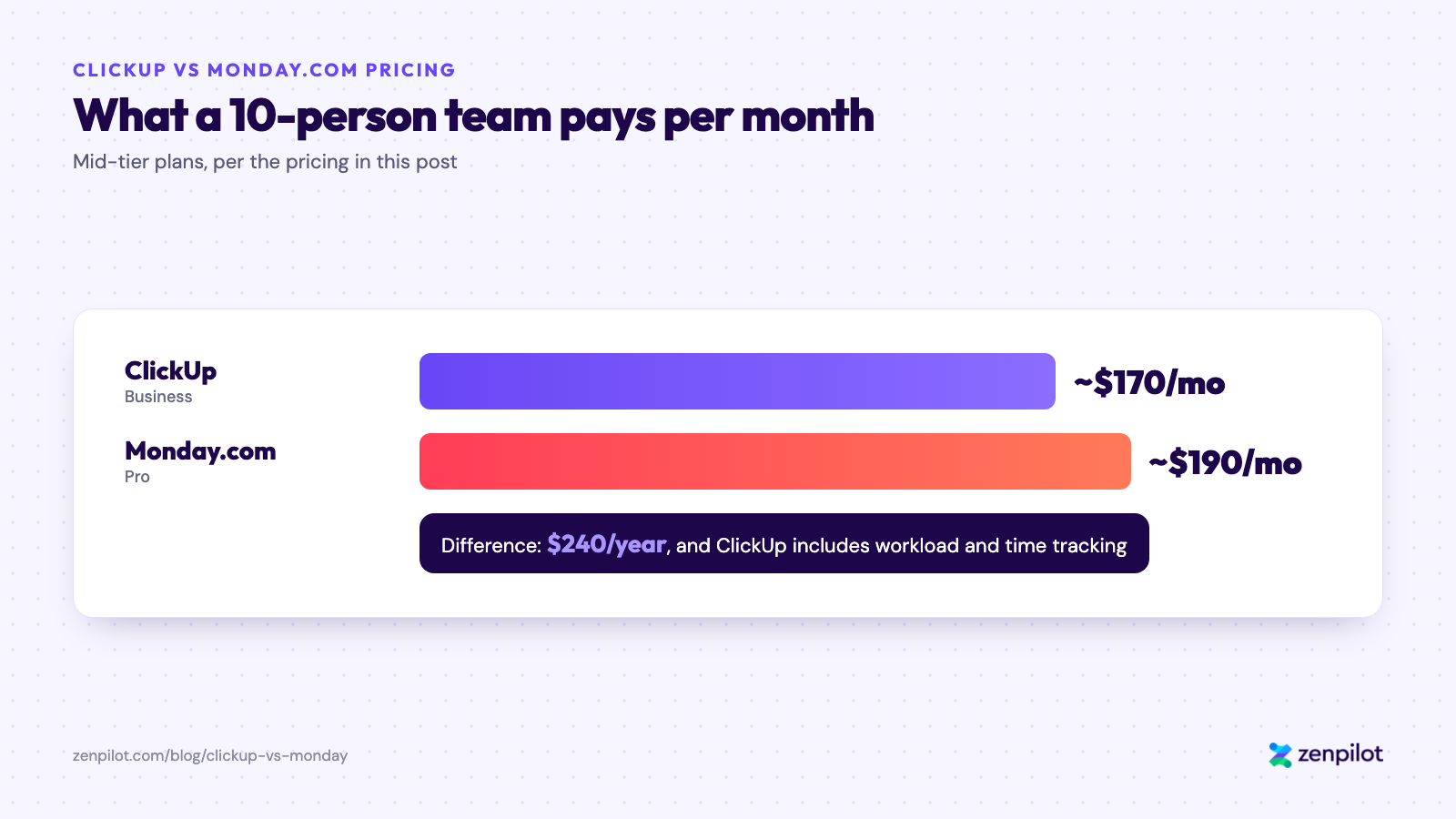
Monthly cost for a 10-person team on mid-tier plans.
Winner: ClickUp
Final Verdict: ClickUp vs Monday.com for Agencies
After working with 3,100+ clients, here’s my summary.
Choose ClickUp if you want the most powerful, customizable operating system for your agency. Its hierarchy, views, templates, and workload management give you the visibility and control agencies need to scale. The learning curve is steeper, but the ceiling is much higher, and the right implementation strategy gets your team through it.
Choose Monday.com if your team values ease of use above everything else, or you need CRM + work management in one platform. Monday.com’s UI is polished and adoption is faster. It’s a solid tool that doesn’t go as deep for complex agency operations.
For most agencies reading this, ClickUp is the better investment. Monday.com doesn’t match its deeper hierarchy, templates with date remapping, native time tracking, and org-wide workload management at the same price point.
If you want to get ClickUp set up right the first time, book a call with our team. We’ve led more ClickUp implementations than anyone else, and we’ll be honest if it’s not the right fit.
We’ll Build Your ClickUp Workspace for You
ZenPilot’s ClickUp Implementation designs and builds your ClickUp Workspace around your team’s actual workflows - no guesswork, no wasted setup time.
Learn About ClickUp Implementation →How to Migrate from Monday.com to ClickUp
If you’ve decided ClickUp is the right move, here’s how to approach the migration:
- Audit your Monday.com workspace. Document every board, group, and automation you’re actively using. Identify which boards map to Spaces, Folders, and Lists in ClickUp’s hierarchy. This is also a good time to clean house. Don’t migrate workflows you’ve outgrown.
- Map your custom fields and statuses. Monday.com columns become ClickUp Custom Fields. Status columns become ClickUp Statuses. Create a mapping spreadsheet so nothing gets lost.
- Export your Monday.com data. Use Monday.com’s built-in CSV export to pull your items, updates, and time tracking data. For larger workspaces, export board by board to keep things organized.
- Build your ClickUp hierarchy first. Before importing any data, set up your Spaces, Folders, Lists, and views in ClickUp. Design for how you want to work going forward, which may differ from how you worked in Monday.com.
- Import data and rebuild templates. Use ClickUp’s CSV import to bring in your tasks. Then rebuild your most-used Monday.com board templates as ClickUp templates, this time with due date remapping, dependencies, and time estimates built in.
- Train your team and run parallel for 1-2 weeks. Don’t flip the switch overnight. Run both systems in parallel briefly so your team builds confidence in ClickUp before you archive Monday.com.
Need help? ZenPilot has migrated hundreds of teams from Monday.com to ClickUp. Book a call and we’ll walk you through the process.
More ClickUp Comparisons
- ClickUp vs Asana - features, pricing, and real results
- ClickUp vs Wrike - flexibility vs enterprise
- ClickUp vs Basecamp - simple vs powerful
- ClickUp vs Smartsheet - spreadsheet vs modern platform
- ClickUp vs Teamwork.com - built for service teams
- ClickUp vs Trello - when teams outgrow Kanban
- ClickUp vs Notion - work management vs knowledge management
- ClickUp vs Jira - project management vs issue tracking
- ClickUp vs Airtable - work management vs database-first
- ClickUp vs Todoist - team operating system vs personal task list
- ClickUp vs SmartSuite - agency work management vs no-code work platform
Frequently Asked Questions
Is ClickUp better than Monday.com for agencies?
Yes, for most agencies ClickUp is the stronger choice. Its hierarchy pairs with views to give leadership bird’s-eye visibility across all clients and departments. ClickUp also has stronger workload management and a much deeper template system, including due date remapping on deployment, which matters when you deliver the same services over and over.
Monday vs ClickUp: which is easier to use?
Monday.com. It has a polished UI, faster onboarding, and a learning curve that isn’t as steep as ClickUp’s. ClickUp probably has the steepest learning curve of any project management platform, so plan on a proper implementation and team training if you choose it.
Is ClickUp cheaper than Monday.com?
At scale, yes. ClickUp has a free plan with unlimited members, and paid plans start at $9/user/month. Monday.com’s free plan caps at 2 seats, paid plans start at $9/seat/month with a 3-seat minimum, and you may need to pay separately for additional products like CRM. The cost difference becomes more significant as your team grows.
Should I use ClickUp or Monday.com as a CRM?
If you want work management and a CRM from one vendor in a packaged, out-of-the-box product, Monday.com is the pick. Its CRM is a separate product priced starting at $12/seat/mo. Both tools can work as a complete CRM solution.
Can you migrate from Monday.com to ClickUp?
Yes, teams migrate from Monday.com to ClickUp regularly. You map your Monday.com boards and items to ClickUp’s hierarchy of Spaces, Folders, Lists, and Tasks. ZenPilot has helped hundreds of teams make this transition as part of our ClickUp implementation process.
What is the difference between ClickUp and Monday.com?
ClickUp is built around a deep, flexible hierarchy that gives agencies org-wide visibility and reporting. Monday.com is built around boards with a polished UI that prioritizes ease of use. ClickUp is more customizable and powerful. Monday.com is faster to adopt and simpler to learn.
Is Monday.com good for agencies?
Monday.com can work for agencies, especially smaller teams that value ease of use and a clean interface. Most agencies outgrow it as they scale because of limits in cross-project visibility, template depth, and workload management. That’s why the majority of agencies we work with choose ClickUp.
Want Help Making the Right Call?
Picking between ClickUp and Monday.com is the easy part. Getting your team to actually run on the winner (clean hierarchy, real templates, time tracking people follow) is where most teams stall out.
That’s what our ClickUp consultants do at ZenPilot. We look at how your team runs ClickUp today (or how you’d migrate off Monday.com), show you exactly what to fix, and help you roll out the fixes in a way your team will adopt instead of ignore.
If you want that kind of look at your Workspace, book a free 30-minute call. Worst case, you walk away with a shorter list of things to worry about.